
Connect to PostgreSQL through OpenVPN on a Mac
To connect to PostgreSQL through OpenVPN in Selekta, enter the database's private address on the General tab, then on the VPN tab tick Connect through OpenVPN, choose the .ovpn profile from your VPN admin and fill in the VPN username and password if the profile asks for them. Selekta starts the VPN for that one connection only, with no admin rights and no change to your Mac's routes or DNS.
Many company databases are not reachable from the internet at all. They sit in a private network, for example 10.20.0.15 or db.internal.example, and the only way in is the office VPN. This guide covers Selekta's built-in OpenVPN client and, as an alternative, a VPN app that connects your whole Mac.
How the built-in VPN works
Selekta runs the OpenVPN client inside the app. It does not create a network interface on your Mac, so it needs no administrator password and leaves your routes and DNS settings alone. Your browser, mail and other apps keep using your normal network.
When you connect, Selekta:
- Opens the VPN using your
.ovpnprofile. - Exposes a local address on
127.0.0.1for this connection only. - Connects the PostgreSQL driver to that local address, so every query travels through the VPN.
Host names in the connection, such as db.internal.example, are resolved through the VPN, so internal names work even when your Mac's own DNS does not know them.
Before you start
You need:
- The
.ovpnprofile file from your VPN administrator. Keep any files it refers to (certificates, keys, a tls-auth key) in the same folder: Selekta reads them next to the profile. - Your VPN username and password, if the profile uses
auth-user-pass. Profiles that log in with a client certificate only do not need them. - The database address as seen inside the VPN: a private IP such as
10.20.0.15or an internal host name. Do not use127.0.0.1here: that would point at your own Mac. - The usual PostgreSQL details: port (usually
5432), database, user and password.
Set it up step by step
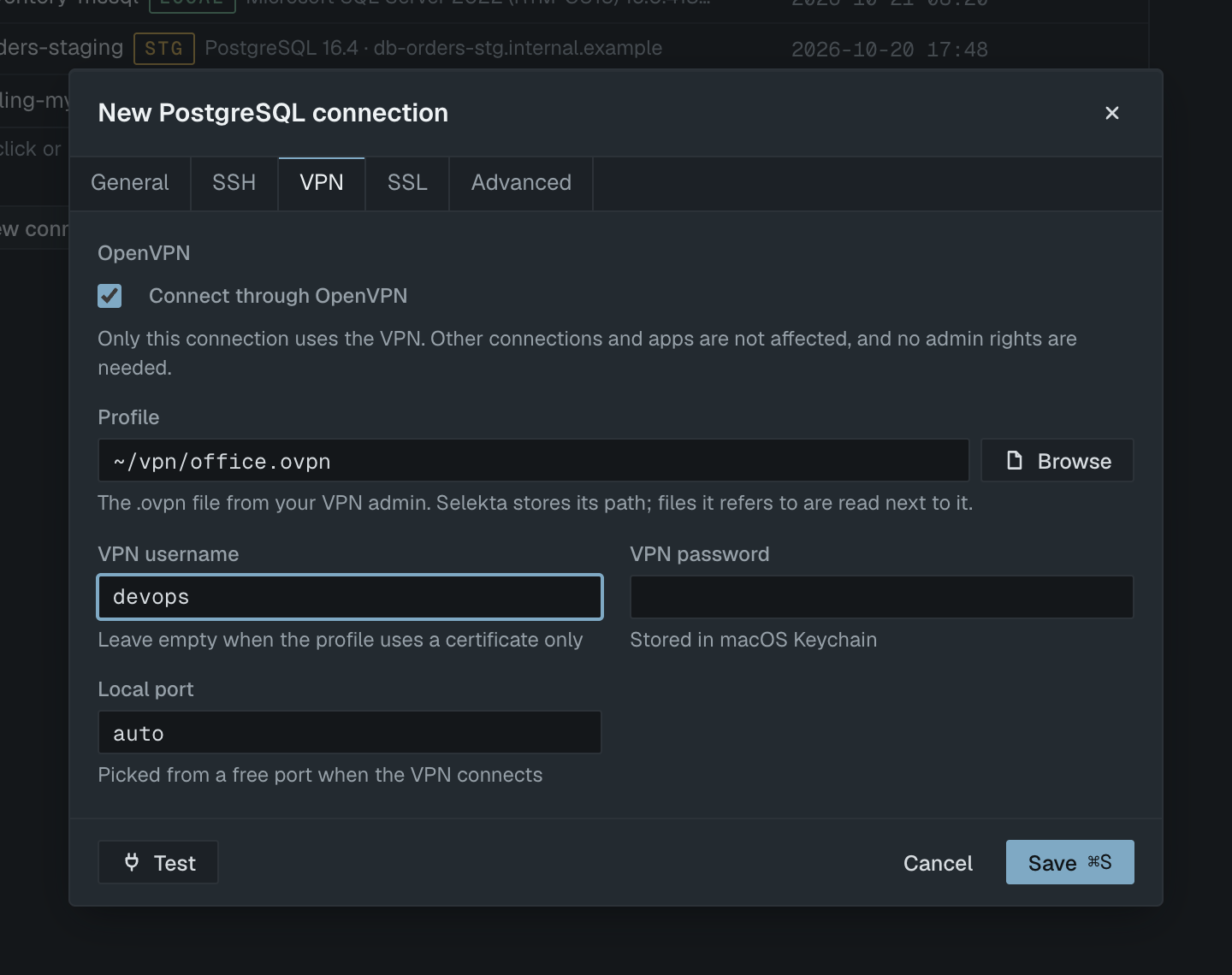
- Open Selekta and press ⌘N (or click New connection on the welcome screen), then pick PostgreSQL.
- On the General tab, fill in Name, choose the Environment (pick Production for a production database, so every tab is labelled and destructive statements ask for the connection name), and enter Host as the private address, for example
10.20.0.15, plus Port, Database, User and Password. - Open the VPN tab (⌘3) and tick Connect through OpenVPN.
- Next to Profile, click Browse and choose your
.ovpnfile. Selekta stores the path to the file, not a copy. - Fill in VPN username and VPN password if your profile asks for them. The password is stored in the macOS Keychain, never in a file. Leave both empty when the profile uses a certificate only.
- Leave Local port on
autounless your setup needs a fixed port. - If the database requires TLS, set the mode on the SSL tab as you would without a VPN.
- Click Test (⌘T). The dialog shows "Connecting the VPN", then the PostgreSQL connection result.
- Click Save (⌘S). From now on, connecting starts the VPN for this connection automatically.
What the built-in client supports
Selekta reads the parts of a .ovpn profile that a client needs and ignores settings that only matter for a system VPN, such as redirect-gateway, dev tun and persist-tun.
Supported:
remote,portandprotowith UDP or TCP.ca,certandkey, as files or inline in the profile.tls-authwithkey-direction.auth-user-pass, asked in the VPN tab or read from a file named in the profile.- AES-CBC and AES-GCM data ciphers (
cipher,data-ciphers), andcomp-lzo.
Not supported yet. Selekta refuses these with a message that names the setting, so you never get a half-working tunnel:
tls-crypt,tls-crypt-v2,pkcs12andsecret(static key mode).verify-x509-name,http-proxy,socks-proxy,pull-filter.static-challenge(one-time codes typed at login).compress, and TAP mode (dev tap).
If your profile uses one of these, ask your VPN admin for a profile without it, or use the system VPN approach below.
Alternative: connect the whole Mac to the VPN
If your profile needs a setting Selekta does not support, or your company requires its own VPN app, connect your Mac with an OpenVPN app such as OpenVPN Connect or Tunnelblick first. Then create the PostgreSQL connection in Selekta without the VPN tab: use the private address as the host, exactly as if the database were on your local network.
The difference: a system VPN routes your Mac's traffic (often all of it) through the company network and usually needs administrator rights to install, while Selekta's built-in client only carries this one connection.
If it fails
Selekta shows the VPN and the database steps separately, so the message tells you which side failed.
- "This VPN profile uses "tls-crypt", which Selekta does not support yet" (or another setting name): the profile uses a feature the built-in client lacks. See the list above, then ask for another profile or use a system VPN.
- "This VPN profile needs a username and password: fill them in on the VPN tab": the profile contains
auth-user-pass. Enter your VPN credentials on the VPN tab. - "Rejected by the VPN server" under the VPN password: the VPN username or password is wrong, or your account is not allowed on that VPN. Check them with your admin.
- "The VPN server … did not complete the connection after 10 s": the VPN server did not answer in time. UDP is often blocked on hotel and office guest networks. If your admin offers a TCP profile (
proto tcp), try it. You can raise the timeout on the Advanced tab. - "VPN server vpn.example.com:1194: …": Selekta could not reach the VPN server at all. Check the
remoteline in the profile and your internet connection. - "db.internal.example could not be resolved through the VPN": the VPN's DNS does not know that name. Use the database's IP address as the host, or ask your admin for the right internal name.
- "The VPN profile CA certificate is not valid PEM" or "The VPN client key is not valid PEM": a certificate or key file is damaged or missing next to the profile. Download the profile again.
- "VPN link lost": the VPN dropped, for example after your Mac slept or changed Wi-Fi. Disconnect the connection in the navigator and connect again to start a fresh VPN session; if it keeps happening, check your network.
- Connection refused on port 5432 while the VPN connects fine: the VPN works but PostgreSQL does not accept connections from the VPN's network. The database admin must allow the VPN's address range in
listen_addressesandpg_hba.conf.