
Connections
A connection in Selekta is a saved set of server details (engine, host, port, database, user) plus an environment tag, options and a password stored in the macOS Keychain. You create one with New connection (⌘N), check it with Test, and save it to the navigator.
Create a connection
- Press ⌘N, or click New connection on the welcome screen.
- Pick an engine: PostgreSQL, MySQL / MariaDB, SQLite or SQL Server. Use the arrow keys and ↵, or double-click. All four drivers are bundled with the app, so there is nothing to install.
- Fill in the General tab. The dialog title changes to "New PostgreSQL connection" (or the engine you chose).
- Click Test, or press ⌘T.
- Click Save. A new connection that passed its test opens right away.
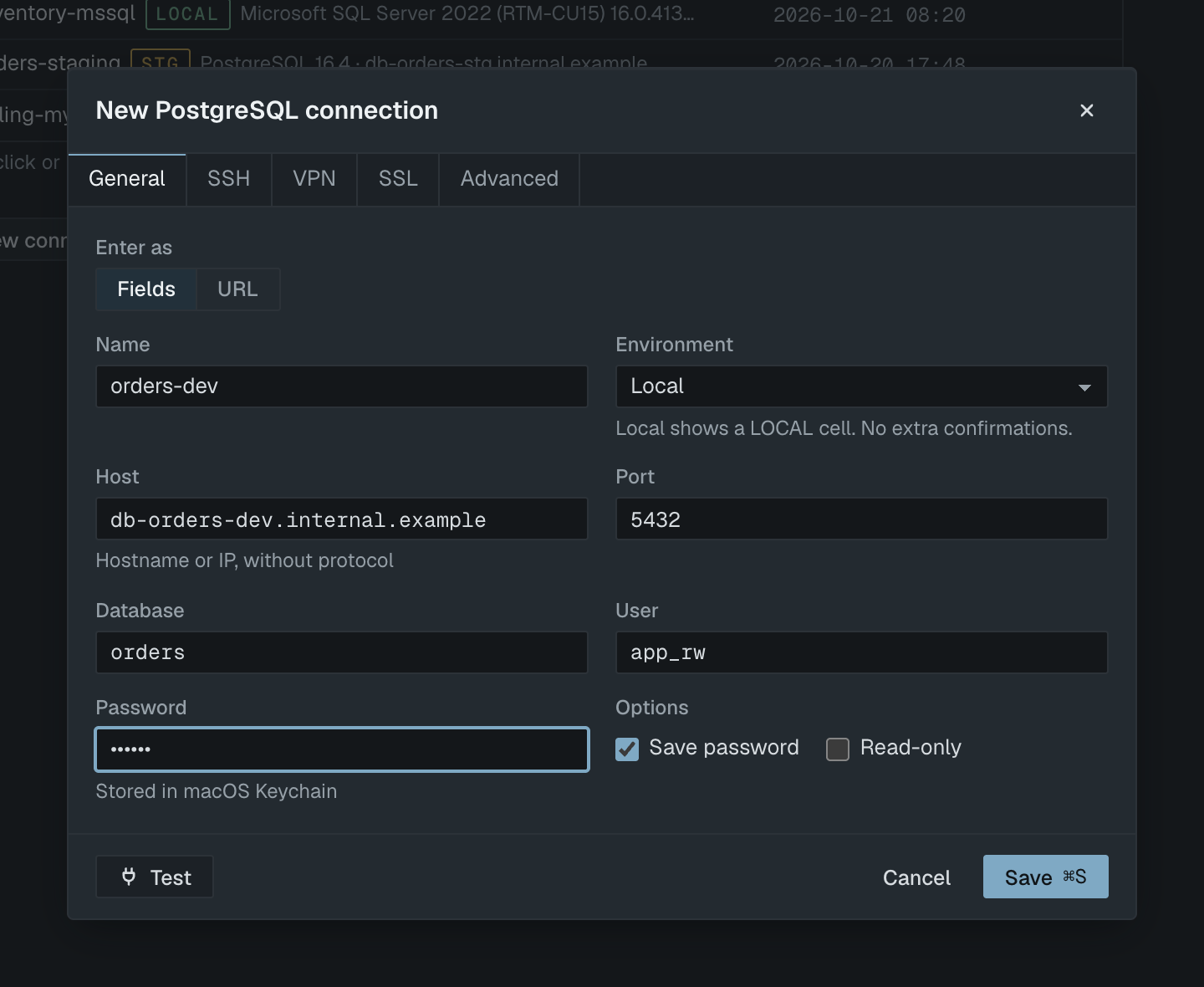
The dialog has five tabs: General, SSH, VPN, SSL and Advanced. A tab with an invalid field shows a warning icon, and the footer counts the fields that need attention; click that count to jump to the first one. For SQLite only General and Advanced are available.
The Advanced tab holds:
| Field | What it does |
|---|---|
| Connect timeout (s) | Deadline for Test and Connect, 1 to 600 seconds. Default 10. |
| Session time zone | PostgreSQL and MySQL only: Server default, This Mac's zone or UTC. |
| Connection pooler | PostgreSQL only, for PgBouncer and similar poolers. See PostgreSQL. |
| Folder | Groups the connection in the navigator. |
Fields or URL
On the General tab of a PostgreSQL or MySQL connection, Enter as switches between Fields and URL. You use one or the other, never both at once.
- Fields: separate Host, Port, Database and User inputs. Host takes a hostname or IP only, without
postgres://, spaces or a path. The port defaults to the engine's usual port. - URL: one Connection URL input. Paste a URL, then press ↵. Parsing happens inside the app; nothing is sent to the server.
postgres://[email protected]:5432/orders?sslmode=verify-full
mysql://[email protected]:3306/billing?ssl-mode=REQUIRED
Selekta recognises postgres://, postgresql://, mysql://, mariadb://, sqlserver://, mssql://, redis://, rediss:// and sqlite://. The query parameters sslmode, ssl-mode and ssl_mode set the SSL mode on the SSL tab, and sslrootcert or ssl-ca set the CA certificate. Fields filled from a URL are marked from URL, and a note tells you how many were filled.
If the URL contains a password, Selekta moves it to the Password field and removes it from the URL, so the password is never stored in the URL or shown in it. When you switch from Fields to URL, the URL is built from the fields you already typed.
You can also paste a URL on the engine step or anywhere in the dialog outside an input; the engine is detected from the scheme. SQL Server connections have no URL mode on the General tab, but a pasted sqlserver:// URL still fills the fields.
Environment
Every connection has an Environment: Production, Staging, Local or None. The tag appears in the navigator and in the title block of every tab, and it decides how careful Selekta is with destructive statements.
| Environment | What changes |
|---|---|
| Production | Red ENV cell. You type the connection name before destructive statements run. |
| Staging | Outlined STAGING cell. Selekta asks before destructive statements and before risky ones such as a large filtered UPDATE. |
| Local | LOCAL cell. Selekta still asks (one click, no typing) before DELETE or UPDATE without WHERE, TRUNCATE and DROP. |
| None | No environment cell. Same confirmations as Local. |
New connections start at None. Set Production for anything that holds real data; the rules are described in Production safety.
Passwords and the Keychain
Passwords never go into a file. Selekta stores connection details in its own database in the app data folder, without passwords, and writes each secret to the macOS Keychain under the service name id.kreasimaju.selekta. The database password, the SSH password or key passphrase, and the VPN password are separate Keychain items.
- Save password is on by default. Turn it off to connect without a stored password; Selekta then asks for it on connect.
- When you edit a connection, an empty Password field keeps the saved password. Type a new one to replace it.
- Unticking Save password on an existing connection removes the stored password from the Keychain.
- If the Keychain refuses the write, the connection is saved without the password and a message says you will be asked on connect.
When the server rejects the saved password, or none is stored, a Password for user on connection dialog opens. Enter the password and click Connect. With Update the password in macOS Keychain ticked, the new password is stored only after the server accepts it.
Test the connection
Test opens one connection with the current form values, reads the server version and role, measures the latency and closes it again. Saving is not required first. While it runs, the footer shows the current step, such as Connecting to host:5432 or Opening tunnel to bastion, and a timer. Click Testing to stop it. Editing any field also stops a running test.
A successful test shows a green banner, for example "Connected to PostgreSQL 16.4 in 38 ms", with the TLS version, SSL mode, server and role underneath.
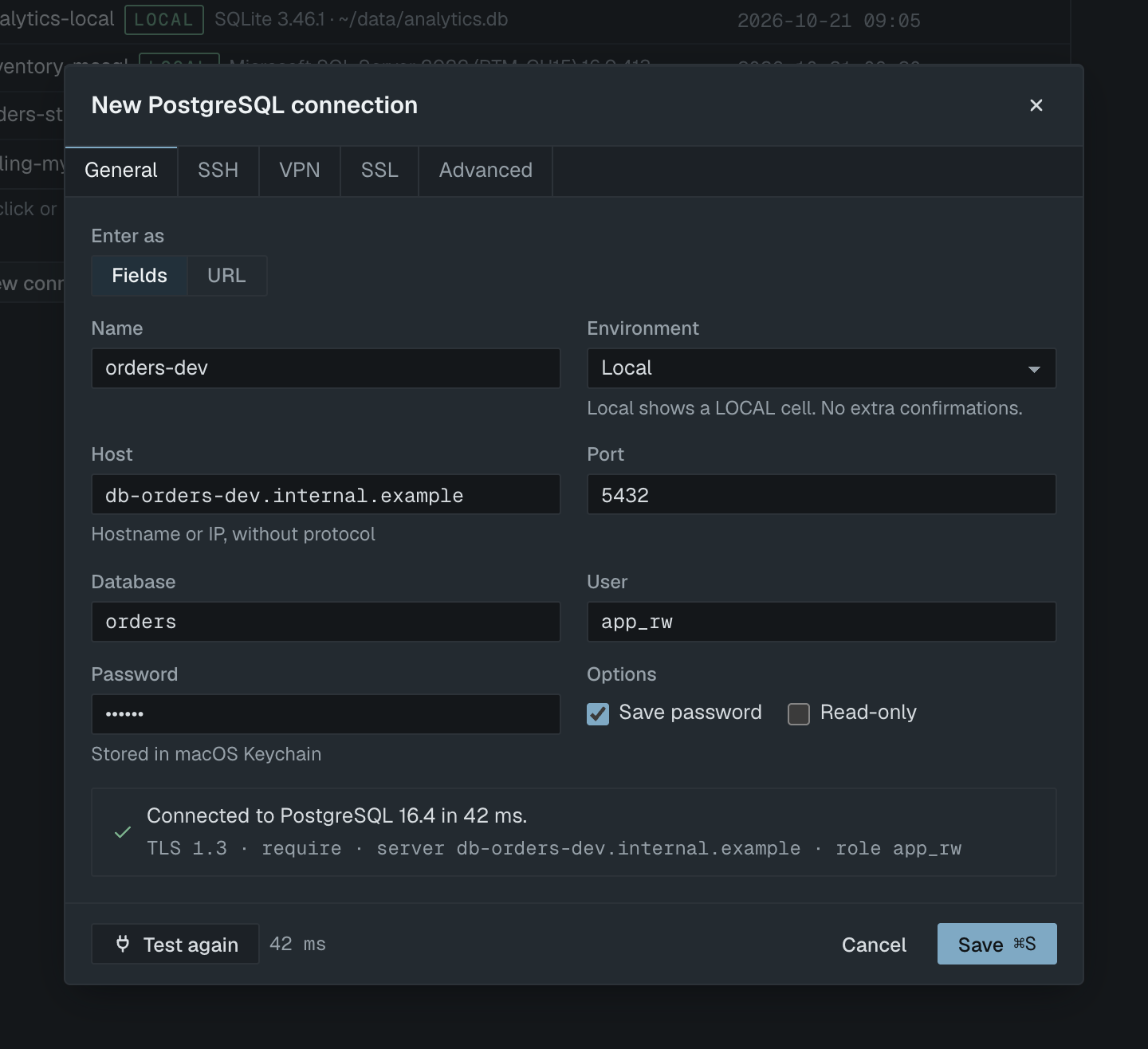
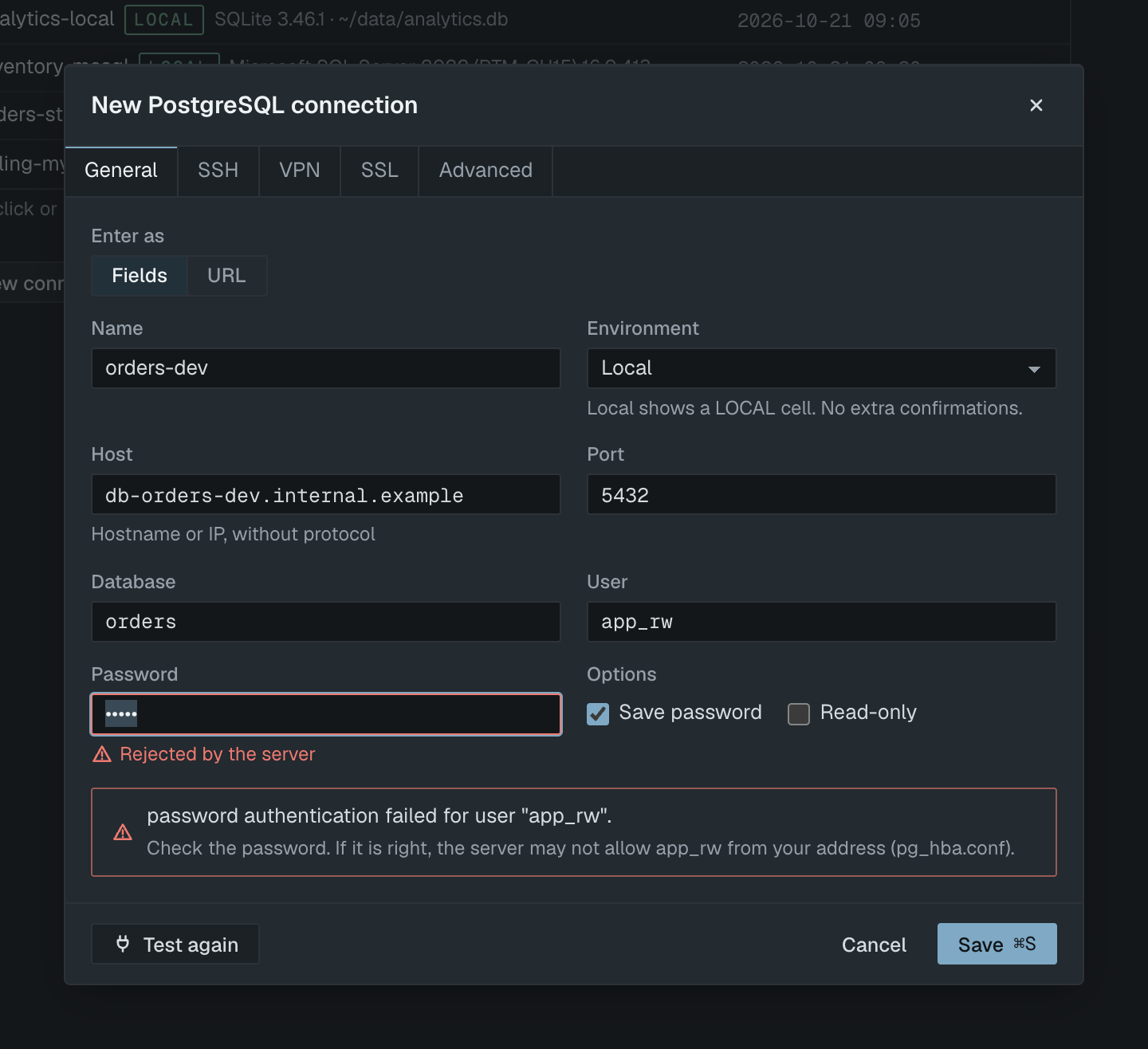
Failures are reported by kind, each with a next step:
- Wrong password: the Password field is marked "Rejected by the server" and selected, with a hint about what else to check (for PostgreSQL,
pg_hba.conf). - Connection refused: nothing is listening at that host and port. A Set up SSH tunnel button opens the SSH tab.
- Host not found: the host name did not resolve. Check the spelling or your VPN.
- Timeout: no answer within the connect timeout. Open Advanced takes you to the timeout field.
- macOS Local Network: if macOS blocked Selekta from a private address, the message tells you to allow Selekta in System Settings › Privacy & Security › Local Network.
Read-only connections
Tick Read-only on the General tab, or choose Set read-only in the connection's navigator menu. Selekta then checks every script before anything is sent and blocks statements that write or that try to change the read-only setting. The blocked attempt is recorded in query history. On top of that, the server session is set to read-only where the engine supports it (PostgreSQL, MySQL and SQLite).
A read-only connection shows a lock in the navigator and a READ-ONLY cell in the title block. Cell editing, structure changes, Import CSV…, Restore…, Truncate… and Drop… are disabled.
Turn off read-only on a Production connection asks for confirmation first.
Folders and managing connections
Folders group connections in the navigator, one level deep. Type a folder name in Folder on the Advanced tab (existing folders are suggested), or right-click a connection and use Move to folder › New folder…. Right-click a folder to Rename folder or Delete folder; deleting a folder only moves its connections out of it.
The connection menu in the navigator also has Connect, Disconnect (⇧⌘D), Edit…, Duplicate, Rename, Copy URL without password, Backup…, Restore… and Delete…. Deleting a Production connection asks you to type its name.
When you edit a connection that is open, the dialog offers Save and Save and reconnect; host, port and credential changes apply after reconnect.
If an open connection stops answering, Selekta shows a banner and retries five times with a growing delay. After the last attempt the banner offers Reconnect and Disconnect. Any open transaction was rolled back by the server, and unapplied edits stay on their tabs.