Connect to Microsoft SQL Server from a Mac
To connect to Microsoft SQL Server from a Mac, create a new SQL Server connection in Selekta with the server's host, port 1433, a database and a SQL Server login (user name and password), keep encryption on "Encrypt, trust server certificate" for a local or self-signed server, then click Test and Save. Windows authentication is not supported, so you need a SQL login.
The driver is built in: there is nothing to install, no ODBC setup and no Java. This guide covers the connection fields, the three encryption options, the self-signed certificate case, logins, and how scripts with GO run.
What you need
- Host and port. SQL Server listens on TCP port
1433by default. A named instance (SERVER\SQLEXPRESS) often uses a different, dynamic port; ask for the actual port number, because the instance name alone is not enough here. - A SQL Server login. A user name and password created with
CREATE LOGIN, such assaon a development server. The server must have SQL Server and Windows Authentication mode (mixed mode) turned on. - A database name (optional). Leave it empty to land in the login's default database, usually
master.
Windows authentication (integrated security) and Microsoft Entra ID sign-in are not supported. Selekta signs in with SQL Server authentication only. If your organisation allows domain accounts only, ask the database administrator for a SQL login.
Running SQL Server locally on a Mac
SQL Server does not run natively on macOS. For a local development server, the usual approach is the official Linux container in Docker Desktop. On Apple silicon it runs under x86 emulation, which is fine for development.
docker run -e "ACCEPT_EULA=Y" -e "MSSQL_SA_PASSWORD=YourStrong!Passw0rd" \
  -p 1433:1433 --name sql1 -d mcr.microsoft.com/mssql/server:2022-latest
Then connect to host localhost, port 1433, user sa with that password.
Connect step by step
- Press ⌘N, choose SQL Server in the engine list (it shows "sqlserver · 1433") and press ↵.
- Enter a Name, for example
erp-staging, and pick the Environment (Production, Staging, Local or None). - Fill in Host (a hostname or IP, without
tcp:or a protocol), Port (1433is prefilled), Database (the placeholder suggestsmaster) and User. - Type the Password. With Save password ticked it goes to the macOS Keychain.
- Open the SSL tab and choose the encryption option (next section). The default is Encrypt, trust server certificate.
- Click Test or press ⌘T. On success the banner reads, for example, "Connected to SQL Server 2022 16.0.4145.4 in 18 ms."
- Click Save (⌘S).
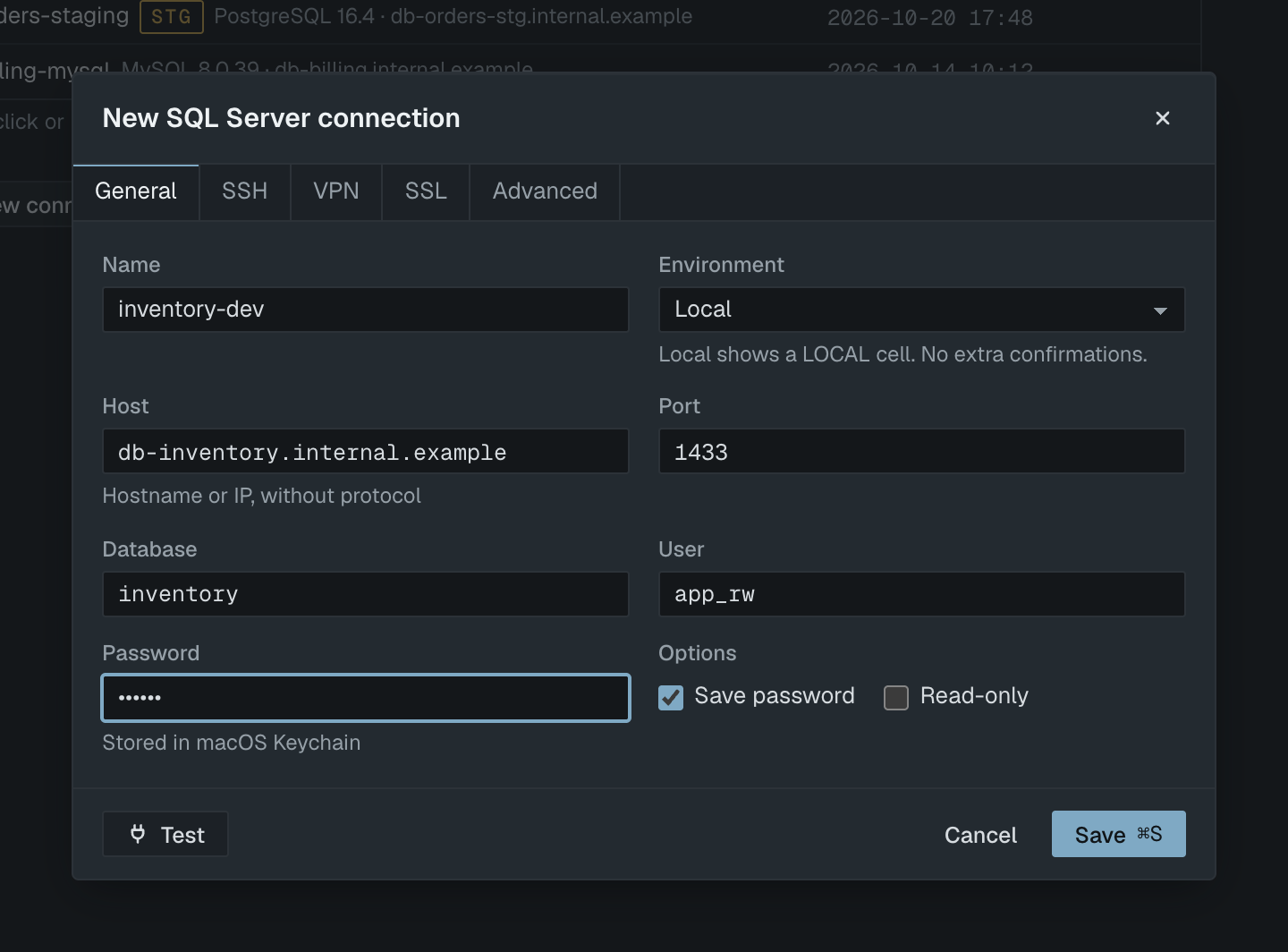
For SQL Server the General tab always shows separate fields. You can still paste a sqlserver://user@host:1433/database URL into Or paste a connection URL on the first step of the dialog, and Selekta fills the fields from it.
Encryption options
The SSL mode list on the SSL tab has three choices for SQL Server:
| Option | What it does | Use it for |
|---|---|---|
| Off | Only the login packet is encrypted. Queries and results are sent in clear text. | Never over a network you do not control. |
| Encrypt, trust server certificate | Encrypts all traffic but accepts any server certificate. | Local Docker servers and development servers with self-signed certificates. The default. |
| Encrypt and verify | Encrypts and checks the certificate chain and that it matches the host name. | Remote and production servers, Azure SQL. |
The help text under the list explains the current choice in the same words, so you can check it before you test.
The self-signed certificate case
A fresh SQL Server install generates a self-signed certificate. With Encrypt, trust server certificate that just works. With Encrypt and verify, the test stops at the TLS handshake and the Server certificate not trusted dialog appears, showing the certificate subject, issuer, expiry date and SHA-256 fingerprint. No password has been sent yet. You then have three choices:
- Switch to Encrypt and verify with a CA file… if your company has its own certificate authority: pick its
.pem,.crtor.cerfile and test again. This is the correct fix for production. - Trust this certificate for this connection pins this exact certificate by fingerprint. If the server later presents a different one, Selekta asks again instead of connecting silently.
- Cancel and go back to Encrypt, trust server certificate if this is a development server.
Compare the fingerprint with one your administrator gives you before trusting it.
Running scripts with GO
GO is not T-SQL; it is a batch separator that tools understand. Selekta handles it the way SQL Server tools do:
DECLARE @since date = '2026-01-01';
SELECT COUNT(*) FROM dbo.Orders WHERE OrderDate >= @since;
GO
CREATE OR ALTER PROCEDURE dbo.RecentOrders AS
  SELECT TOP (50) * FROM dbo.Orders ORDER BY OrderDate DESC;
GO
EXEC dbo.RecentOrders;- A line holding only
GO(any case) ends a batch. When you run the whole script with ⌥X, everything between twoGOlines is sent as one batch, so a variable declared withDECLAREis visible to the statements after it in the same batch. CREATE PROCEDURE,CREATE FUNCTIONandCREATE TRIGGERbodies run to the end of their batch, andBEGIN … ENDblocks stay whole.- A count after GO, as in
GO 5, is accepted but ignored: the batch runs once. - ⌘↵ runs only the statement under the cursor.
If it fails
Login failed for user 'sa'. SQL Server error 18456: wrong password, a disabled login, or a server that accepts Windows authentication only. Selekta marks the password "Rejected by the server" and adds: "Check the password. If it is right, the server may allow Windows authentication only, or the login has no access to this database." Turn on mixed mode authentication on the server, or ask for a SQL login.
Cannot open database "Sales" requested by the login. The login failed. Error 4060: the login is valid but the database does not exist or the login has no user in it. Leave Database empty to check that the login works, then fix the name or ask for access.
Connection refused on sql.example.com port 1433. Nothing is listening there. Check that SQL Server is running, that TCP/IP is enabled in SQL Server Configuration Manager, and the real port of a named instance. For a server inside a private network, use Set up SSH tunnel in the banner.
No answer from sql.example.com after 10 s. A firewall is dropping traffic on 1433. Open the port for your address, connect over VPN, or use an SSH tunnel; you can raise Connect timeout (s) under Advanced, but that rarely helps on its own.
Server certificate not trusted. Covered above: you chose Encrypt and verify and the server's certificate is self-signed or issued by a CA your Mac does not trust.