
Connect to a database through an SSH tunnel
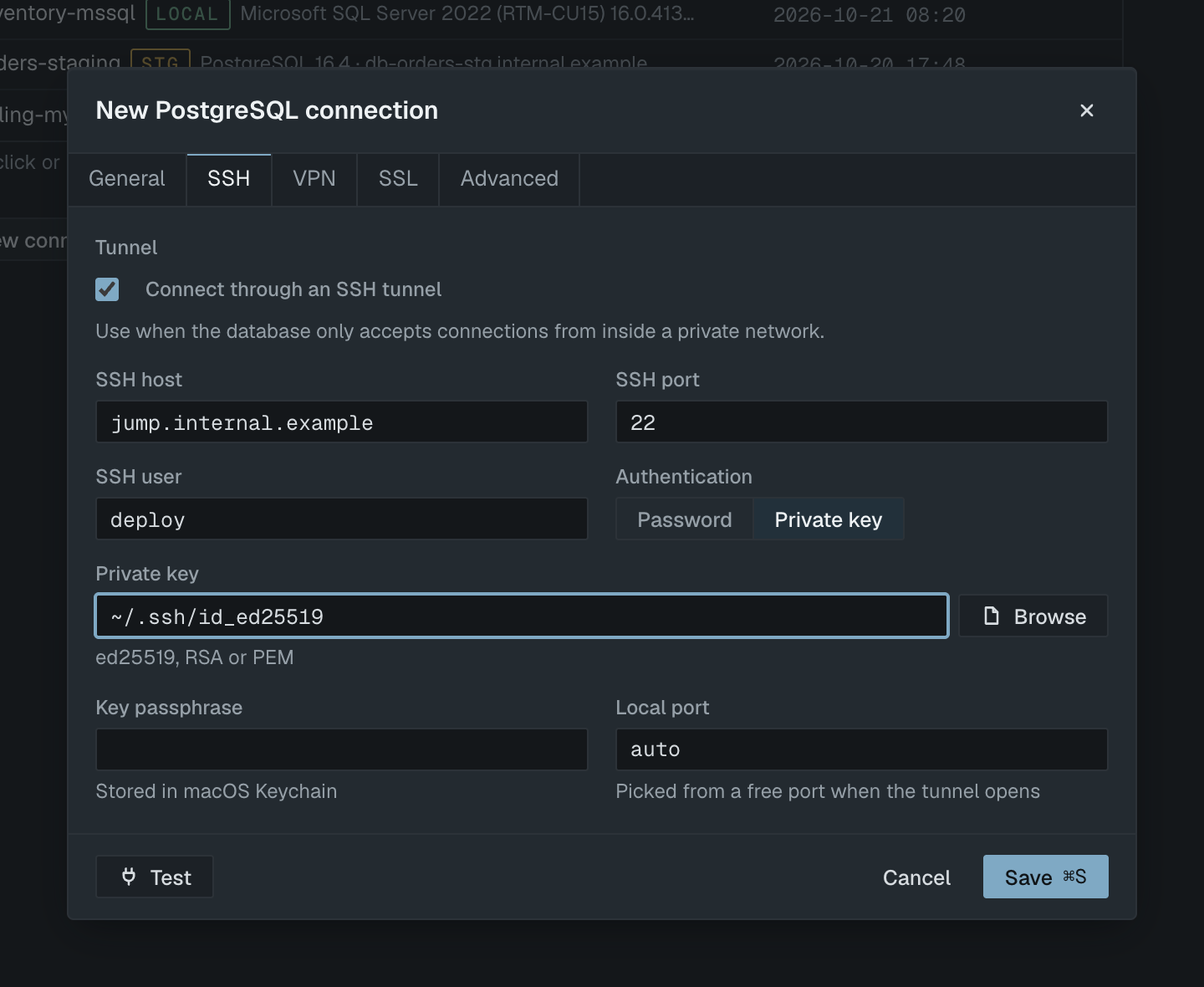
To connect to a database through an SSH tunnel, enter the database details as the bastion host sees them, then on the SSH tab tick Connect through an SSH tunnel and fill in the SSH host, port 22, SSH user and either a private key or a password. Selekta opens the tunnel, forwards a local port to the database, and asks you to verify the bastion's host key the first time.
You do not need to run ssh -L in Terminal or keep a window open. The tunnel belongs to the connection: it opens when you connect and closes when you disconnect.
How the tunnel works
A bastion (or jump host) is a server you can reach over SSH that can itself reach the database on a private network. Selekta signs in to the bastion, listens on a free port on 127.0.0.1 on your Mac, and forwards every database connection through the SSH session to the database host and port you entered on the General tab.
The important detail: the database host is resolved by the bastion, not by your Mac. That decides what you type into Host:
| Where the database runs | Host on the General tab |
|---|---|
| On the bastion itself, listening on localhost | 127.0.0.1 or localhost |
| On another machine in the private network | Its private IP or internal name, for example 10.0.3.17 or db.internal |
| A managed database (RDS, Cloud SQL and similar) in a private subnet | The endpoint name the provider gives you |
If you enter 127.0.0.1 while the database runs on a different machine, the bastion tries to connect to itself and the test fails with connection refused.
Set it up step by step
- Press ⌘N and choose the engine (PostgreSQL, MySQL / MariaDB or SQL Server). SQLite files are local, so they have no SSH tab.
- On the General tab, enter the Host and Port of the database as seen from the bastion (see the table above), plus Database, User and Password for the database.
- Press ⌘2 or click the SSH tab, and tick Connect through an SSH tunnel.
- Enter the SSH host (for example
bastion.example.com), the SSH port (22is prefilled) and the SSH user. - Under Authentication, choose Private key or Password:
- Private key: the path defaults to
~/.ssh/id_ed25519. Use Browse for another file. Ed25519, RSA and PEM keys work. If the key is protected, type its passphrase into Key passphrase. - Password: type it into SSH password. Either secret is stored in the macOS Keychain.
- Private key: the path defaults to
- Leave Local port on
autoso Selekta picks a free port when the tunnel opens. Set a fixed port only if something else on your Mac must reach the same tunnel. - Click Test (⌘T). While it runs, the footer shows "Opening tunnel to bastion.example.com".
- The first time, the Verify SSH host key dialog appears. Check the fingerprint (next section) and click Trust and connect.
- When the green "Connected to …" banner appears, click Save (⌘S).
Key or password
Key authentication is the better choice. It cannot be guessed, it can be revoked per person, and most bastions turn off password login entirely. If you do not have a key yet:
ssh-keygen -t ed25519 -C "[email protected]"
# then send ~/.ssh/id_ed25519.pub to the bastion admin, or:
ssh-copy-id -i ~/.ssh/id_ed25519.pub [email protected]
Check it works in Terminal with ssh [email protected] before you set up the connection; any problem there will also appear in Selekta.
Use password authentication only when the bastion is set up for it, for example a temporary server.
Host key confirmation
SSH protects you from talking to an impostor by checking the server's host key. On the first connection to a bastion, Selekta shows Verify SSH host key with the host, key type and fingerprint: "First connection to this SSH host. Selekta has not seen its key before." Compare the fingerprint with the one the bastion owner published, or read it on the bastion:
ssh-keygen -lf /etc/ssh/ssh_host_ed25519_key.pubTrust and connect stores the key in ~/.ssh/known_hosts, the same file Terminal's ssh uses. If you have already connected with ssh from Terminal, the key is known and you are not asked.
If the key later changes, Selekta blocks the connection with SSH host key changed and shows the stored and presented fingerprints side by side. That happens when a server is reinstalled, but it is also exactly what an interception looks like. Ask the bastion owner which fingerprint is correct. Only then use Remove stored key…; the next test asks you to trust the new key.
If it fails
SSH authentication failed for [email protected]. The bastion rejected the key or password. Check the SSH user, check that your public key is in that user's ~/.ssh/authorized_keys on the bastion, and try ssh -v [email protected] in Terminal to see which key it offers.
Cannot read SSH key ~/.ssh/id_rsa: … The key file is missing, unreadable, or protected by a passphrase you did not enter (or entered wrongly). Fix the path or type the passphrase into Key passphrase.
No answer from 10.0.3.17 after 10 s. With the tunnel on, this usually means the bastion itself did not answer in time, even though the banner names the database host. Check the SSH host and port, whether you need the office VPN, and whether the bastion's firewall allows your IP address. Connection refused (os error 61) means the bastion is reachable but nothing listens on that SSH port.
The tunnel opens, then the database connection closes at once. SSH login worked, but the bastion could not open a channel to the database, so the database driver reports a closed or reset connection. There are two usual causes. First, Host on the General tab is wrong: 127.0.0.1 means the bastion itself, so use the database's private address instead, and check that the database listens on that interface. Second, the bastion forbids port forwarding (AllowTcpForwarding no in sshd_config); ask the administrator to allow it for your user. You can check both from Terminal with ssh -N -L 15432:10.0.3.17:5432 [email protected] and a connection to localhost:15432.
Host key not trusted. Nothing was sent to bastion.example.com. You cancelled the host key dialog. Test again when you have the fingerprint to compare.
macOS blocked Selekta from reaching 10.0.0.5 on your local network. Allow Selekta in System Settings › Privacy & Security › Local Network, then connect again.
Use either the SSH tunnel or the VPN, not both. A connection can use one of them. Turn the other off.
When the network changes or your Mac wakes from sleep, the SSH session may die. Selekta rebuilds the tunnel on the same local port the next time the connection is used, so open tabs keep working.