
How to connect to PostgreSQL on a Mac
To connect to PostgreSQL on a Mac, press ⌘N in Selekta, choose PostgreSQL, enter the host, port 5432, database, user and password (or paste a postgres:// URL), then click Test and Save. For a local Postgres.app or Homebrew server, the host is localhost and the user is usually your macOS account name.
This guide covers a local server, a remote one, the two ways to enter the details, the SSL modes, and what each common error message means.
Before you start
Find out four things: where the server runs (host and port), which database you want, the user name, and the password. For a local server on macOS the defaults are predictable:
- Postgres.app listens on
localhost, port5432. It creates a user and a database named after your macOS account, and local connections need no password by default. - Homebrew (
brew install postgresql@17or another version, started withbrew services start postgresql@17) also listens onlocalhost:5432, creates a superuser with your macOS account name, and trusts local connections. The databasepostgresalways exists.
If you are not sure your server is running, pg_isready in Terminal answers in one line:
pg_isready -h localhost -p 5432
# localhost:5432 - accepting connections
For a remote server (a VPS, a managed service, a database at work) you get the host, port, database, user and password from whoever runs it, often as a single connection URL.
Connect step by step
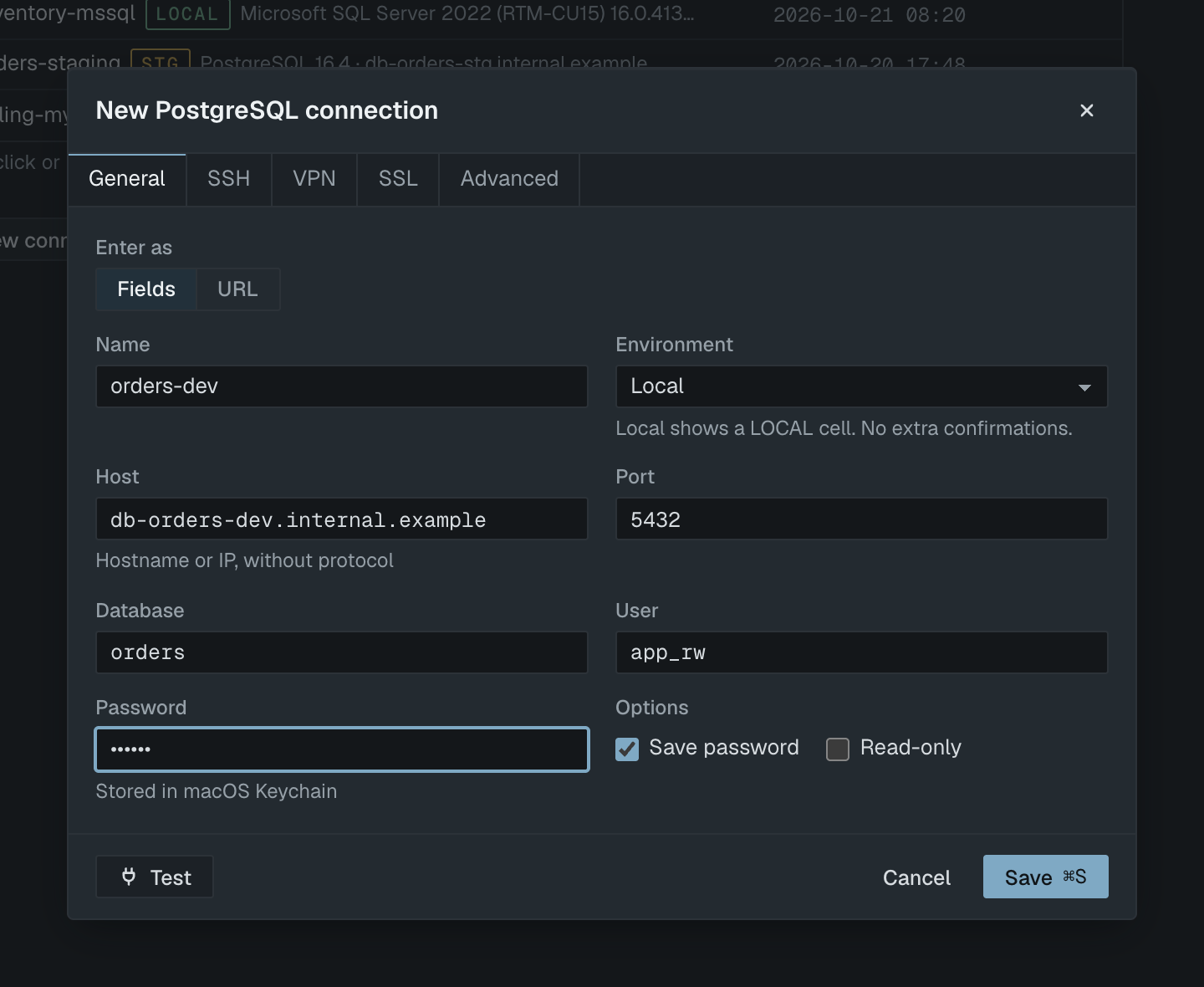
- Open Selekta and press ⌘N (or click New connection on the welcome screen).
- Pick PostgreSQL in the engine list and press ↵. If you already have a URL, paste it into Or paste a connection URL instead; the engine is detected from it.
- On the General tab, choose how to enter the details under Enter as: Fields or URL. Both are described below.
- Give the connection a Name, for example
orders-local, and pick an Environment. Use Local for your own machine and Production for anything real users depend on; Production adds a red PROD cell and asks you to type the connection name before destructive statements run. - Fill in Host, Port, Database and User. For Postgres.app or Homebrew: host
localhost, port5432, database and user set to your macOS account name (or databasepostgres). - Type the Password, if the server needs one. With Save password ticked it is stored in the macOS Keychain, never in a file.
- Open the SSL tab if you need a stricter mode than the default (see below).
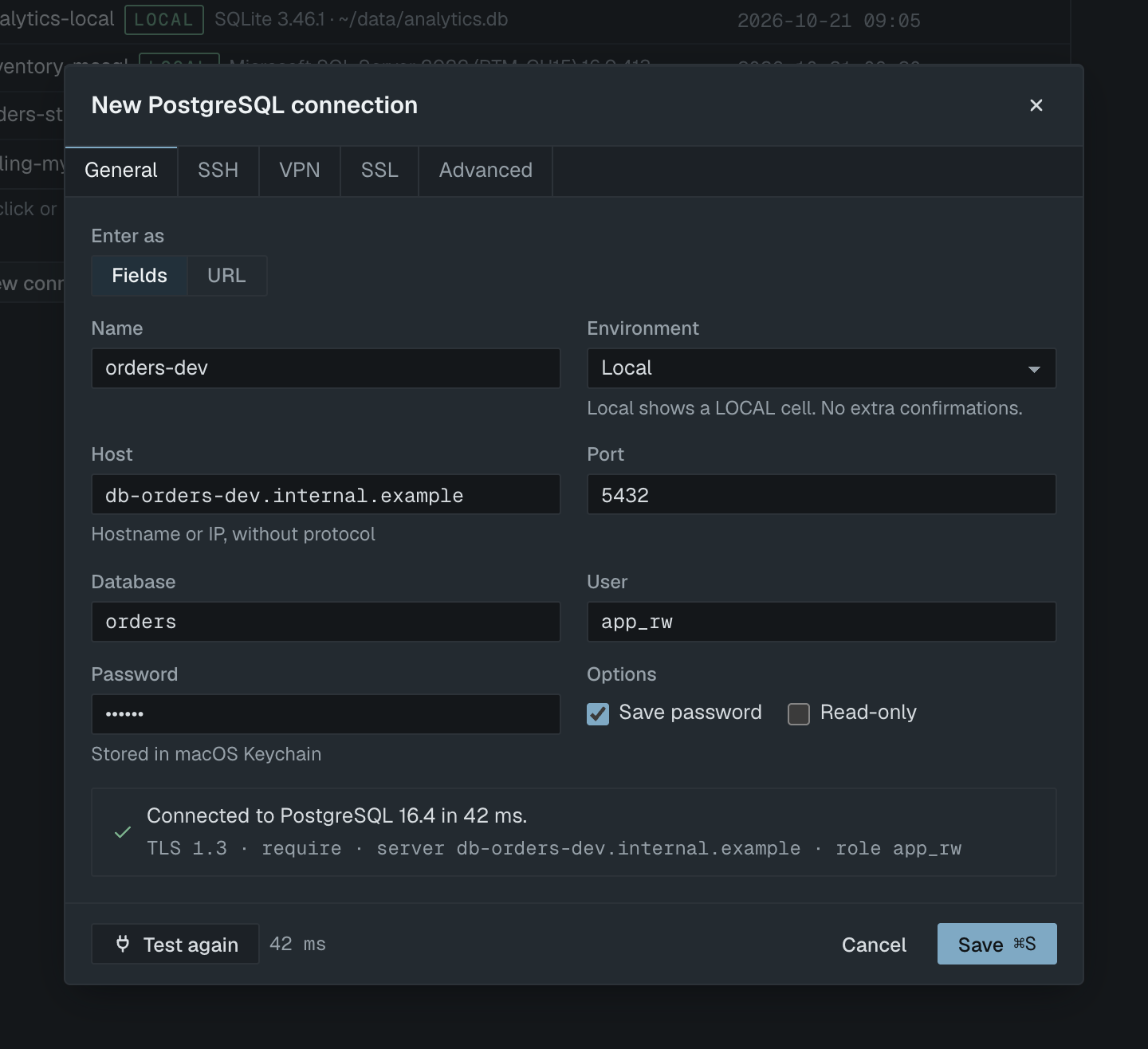
- Click Test or press ⌘T. A green banner reads "Connected to PostgreSQL 17.2 in 12 ms." with the TLS version, SSL mode, server and role underneath.
- Click Save or press ⌘S. A connection that passed the test opens straight away in the navigator.
Fields or URL
Fields shows Host, Port, Database and User as separate inputs. Host takes a hostname or an IP only: if you type postgres://db.example.com, the form tells you to "Remove postgres:// from the host, or paste the whole URL into Connection URL."
URL shows a single Connection URL input. Paste something like:
postgres://app_rw:[email protected]:5432/orders?sslmode=requireand press ↵. Selekta splits it into fields locally ("Nothing is sent to the server") and shows a note such as "Filled 4 fields from the URL and set SSL mode to require on the SSL tab. The password was moved to the Password field and taken out of the URL." The stored URL never contains the password. Both postgres:// and postgresql:// are accepted, and sslmode and sslrootcert query parameters are read.
You can switch between Fields and URL at any time; the values carry across.
SSL modes
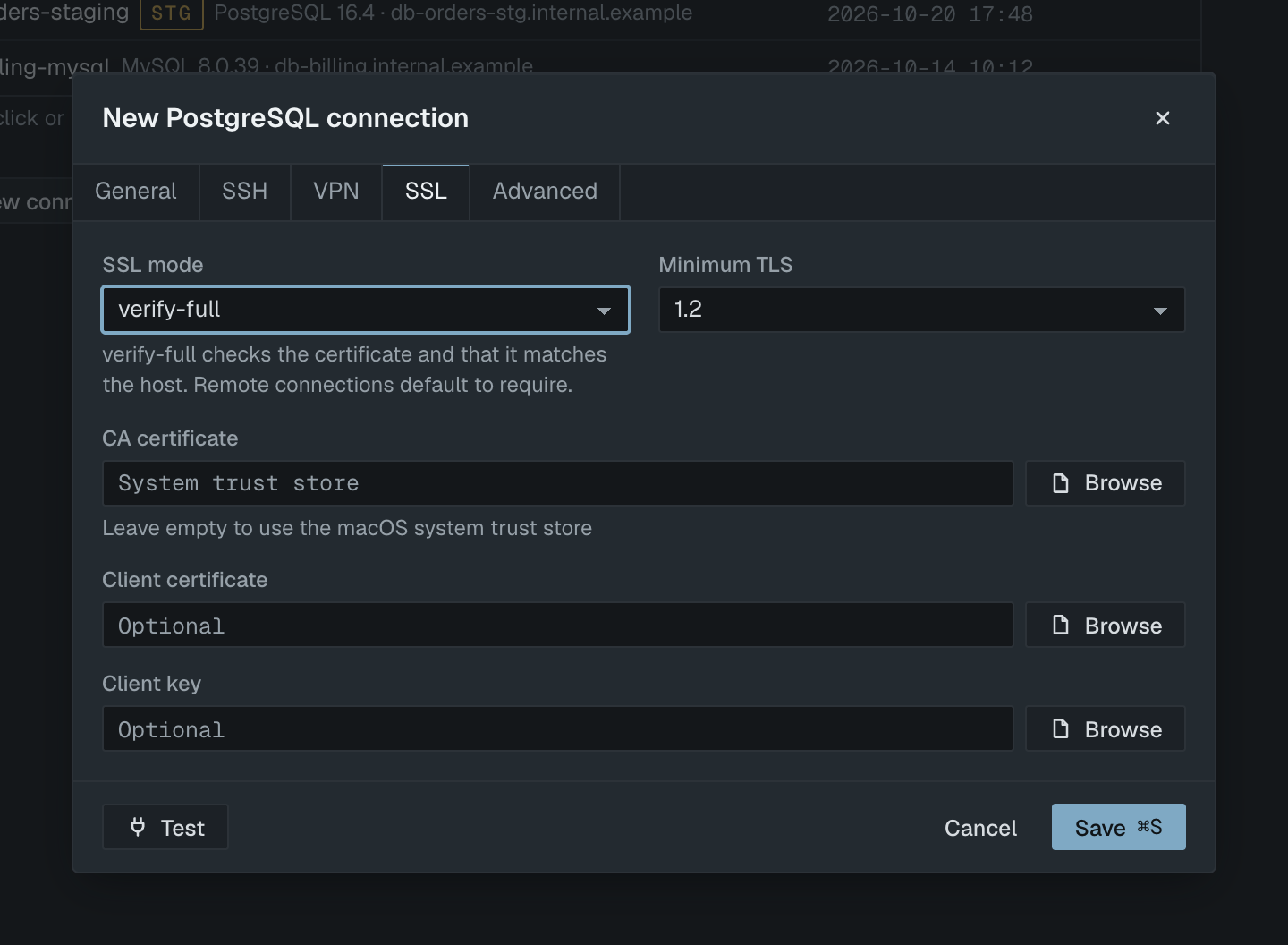
The SSL mode list on the SSL tab offers the standard PostgreSQL modes:
| Mode | What it does |
|---|---|
disable |
No encryption. Traffic and password are sent in clear text. |
prefer |
Uses TLS if the server offers it, otherwise plain. The default for localhost. |
require |
Always encrypts, but does not check the certificate. The default for remote hosts. |
verify-ca |
Encrypts and checks the certificate against a trusted CA. |
verify-full |
Also checks that the certificate matches the host name. The safe choice for remote servers. |
For verify-ca and verify-full, leave CA certificate empty to use the macOS system trust store, or browse to the provider's CA file (managed services publish one). Client certificate and Client key are for servers that require certificate login. Minimum TLS can be raised from 1.2 to 1.3.
If the server presents a certificate macOS does not trust, the test pauses with Server certificate not trusted and shows the subject, issuer, expiry and SHA-256 fingerprint. No password has been sent at that point. You can choose Switch to verify-full with a CA file… (the right fix) or, for a server you know, Trust this certificate for this connection, which pins that exact certificate.
Remote servers in a private network
Many production databases accept connections only from inside a private network. If the test says connection refused or times out and you normally reach the server through a jump host, turn on Connect through an SSH tunnel on the SSH tab. The SSH tunnel guide walks through it.
On recent macOS versions, apps need permission to reach devices on your local network. If you connect to a private address such as 192.168.1.20 and see "macOS blocked Selekta from reaching 192.168.1.20 on your local network. Allow Selekta in System Settings › Privacy & Security › Local Network, then connect again.", do exactly that.
If it fails
The test banner names the problem and, where it can, the field to fix. These are the messages you are most likely to meet.
Connection refused on localhost port 5432. Nothing is listening at that host and port. The second line adds the operating system message, typically Connection refused (os error 61). Start the server (open Postgres.app, or run brew services start postgresql@17), check the port with pg_isready, and if a second server runs on another port, use that port. For a remote server, the database may only listen on its private interface; use Set up SSH tunnel in the banner.
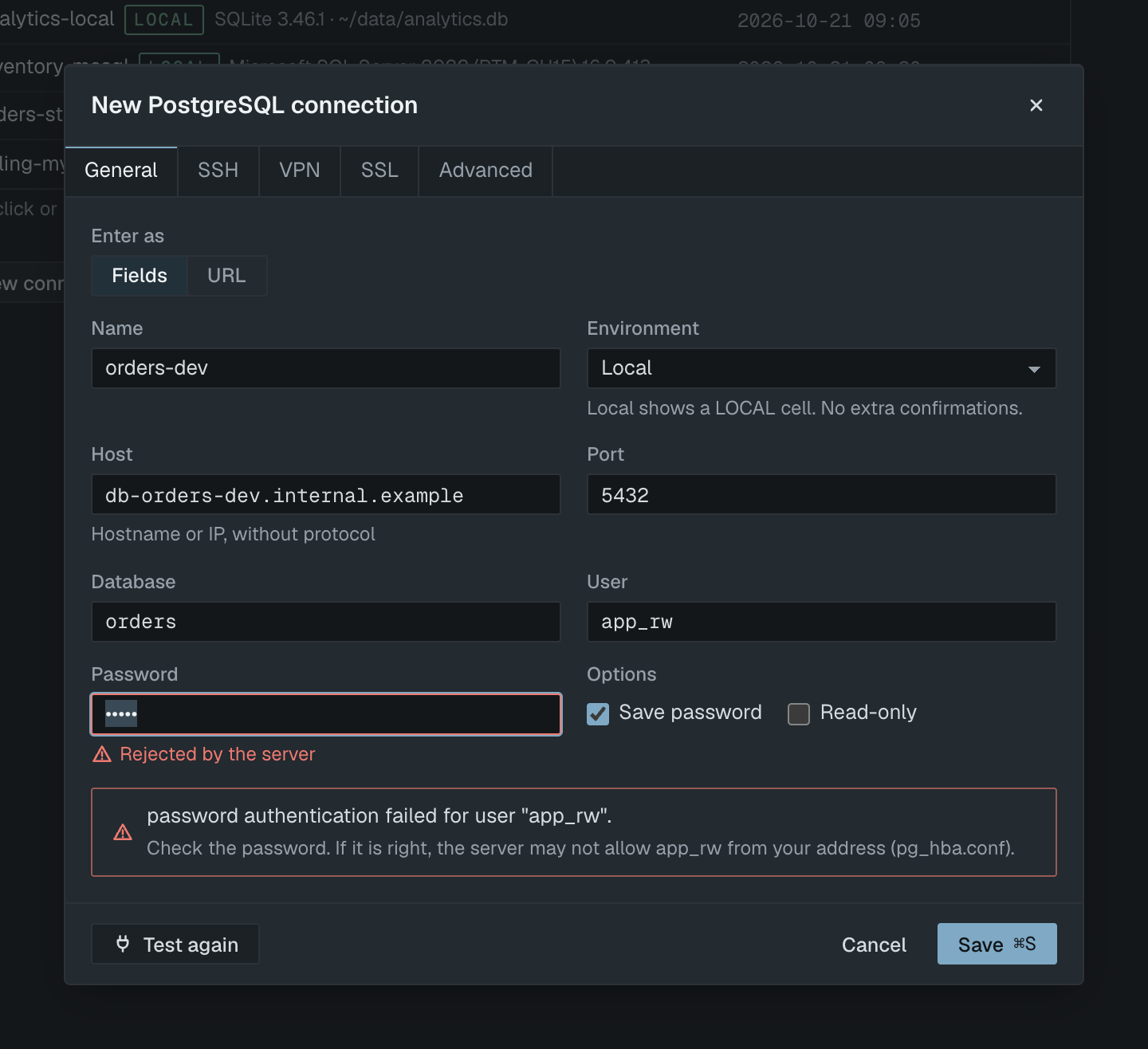
password authentication failed for user "app". The server rejected the password, and Selekta marks the Password field "Rejected by the server". The banner adds: "Check the password. If it is right, the server may not allow app from your address (pg_hba.conf)." Retype the password; on a server you control, reset it with ALTER ROLE app PASSWORD '...'.
no pg_hba.conf entry for host "203.0.113.7", user "app", database "orders", no encryption. The server does not accept this user from your address, or it insists on SSL. The words "no encryption" mean your SSL mode is disable: change it to require or verify-full. If the message says "SSL encryption" instead, the server needs a hostssl or host line in pg_hba.conf for your address; ask the administrator, or connect through SSH.
Could not resolve db.example.com. Check the spelling or your VPN. The host name does not exist from where you are. Check for typos, and connect to your company VPN if the name is internal.
No answer from db.example.com after 10 s. Packets are being dropped, usually by a firewall or a security group that does not include your IP address. You can raise the limit under Advanced › Connect timeout (s), but a firewall rule or an SSH tunnel is the real fix.
database "orders" does not exist. The server accepted the login but has no such database. Connect to postgres first and list databases in the navigator, or create it with CREATE DATABASE orders;.