
SSH tunnels and TLS
Use the SSH tab when the database only accepts connections from inside a private network, and the SSL tab to encrypt the connection and decide which server certificates to trust. Both are part of the connection dialog, and both are checked by Test before you save.
SSH tunnel
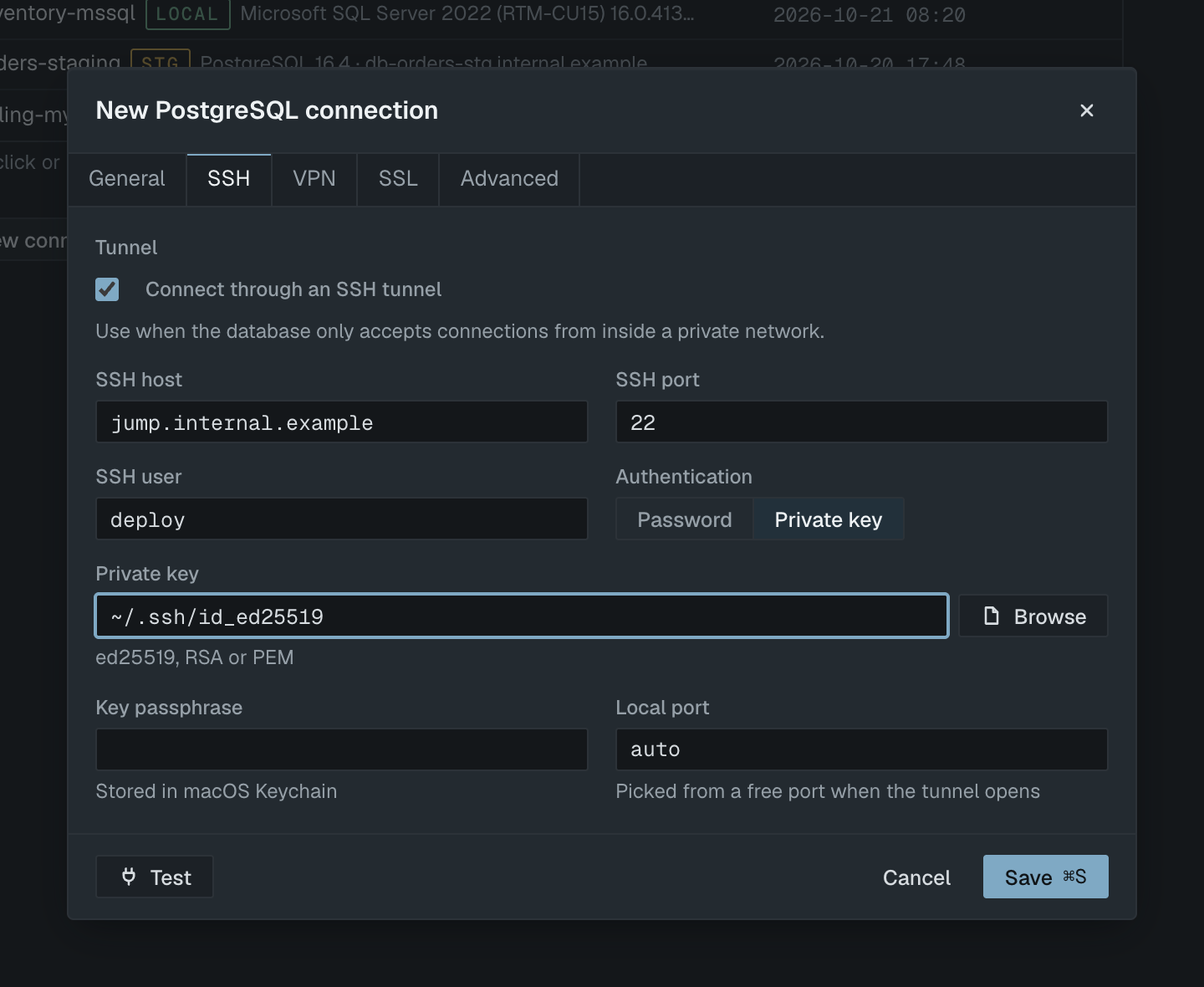
- Open the connection dialog and go to the SSH tab.
- Tick Connect through an SSH tunnel.
- Fill in SSH host (the bastion), SSH port (22 by default) and SSH user.
- Under Authentication, choose Private key or Password.
- For a key, set Private key to the key file (default
~/.ssh/id_ed25519; ed25519, RSA and PEM keys work) and enter the Key passphrase if the key has one. For a password, enter the SSH password. - Leave Local port at
autounless you need a fixed one, then click Test.
On the General tab, enter the database host as the bastion sees it. If the database runs on the bastion itself, that is 127.0.0.1.
Selekta opens the SSH session itself and forwards a port on 127.0.0.1 of your Mac to the database. With auto, an unused port is picked each time the tunnel opens. The passphrase or SSH password is stored in the macOS Keychain, separate from the database password. If the SSH session dies, for example after sleep or a network change, it is rebuilt on the same local port the next time the driver connects, so reconnecting works without reopening the dialog.
SSH host keys
Selekta checks the bastion's host key against ~/.ssh/known_hosts, the same file the ssh command uses.
Unknown key. The first time you connect to a bastion, the test pauses at "opening tunnel" and the Verify SSH host key dialog shows the host, key type and SHA-256 fingerprint. Compare the fingerprint with the one the bastion owner published, then click Trust and connect. The key is written to ~/.ssh/known_hosts once authentication succeeds, and you are only asked again if the key changes. Cancel stops the test; nothing was sent to the host.
Changed key. If the bastion presents a different key than the stored one, the SSH host key changed dialog blocks the connection. It shows the stored fingerprint (with its line in ~/.ssh/known_hosts) next to the presented one. Selekta never accepts a changed key directly. If the bastion owner confirms the new key is correct:
- Click Remove stored key… and confirm with Remove key.
- Click Test again.
- Verify the new fingerprint in the Verify SSH host key dialog and click Trust and connect.
OpenVPN
The VPN tab connects a single connection through OpenVPN. The client runs inside Selekta: no admin rights, and no change to your Mac's routes or DNS. Other connections and apps are not affected.
- Tick Connect through OpenVPN.
- Set Profile to the
.ovpnfile from your VPN admin. Files the profile refers to are read from the same folder. - Fill in VPN username and VPN password if the profile asks for them. Leave the username empty when the profile uses a certificate only. A profile with
auth-user-pass <file>can also take them from that file. - Leave Local port at
autoand click Test.
A connection uses either the SSH tunnel or the VPN, not both. Profile directives that Selekta does not implement, such as tls-crypt, pkcs12, compress, http-proxy or dev tap, are refused with a message that names them, so you never get a half-working tunnel.
SSL modes
The SSL tab sets how the connection is encrypted. The modes follow each engine's own names.
| Engine | Modes |
|---|---|
| PostgreSQL | disable · prefer · require · verify-ca · verify-full |
| MySQL / MariaDB | DISABLED · PREFERRED · REQUIRED · VERIFY_CA · VERIFY_IDENTITY |
| SQL Server | Off · Encrypt, trust server certificate · Encrypt and verify |
- prefer / PREFERRED uses TLS when the server offers it. require / REQUIRED insists on TLS but does not check the certificate.
- verify-ca / VERIFY_CA checks the certificate chain. verify-full / VERIFY_IDENTITY also checks that the certificate matches the host name. Use these for servers outside your machine.
- New PostgreSQL and MySQL connections default to require (REQUIRED) for remote hosts and prefer (PREFERRED) for
localhostand127.0.0.1, which often have no TLS. A mode you pick yourself, or one set by a pasted URL, is kept. - SQL Server defaults to Encrypt, trust server certificate, which development and self-signed servers need. Off still encrypts the login, but queries and results travel in clear text.
With a disabled mode on a remote host, the tab warns that traffic and password are sent unencrypted. SQLite connections have no SSL tab.
Certificates and minimum TLS
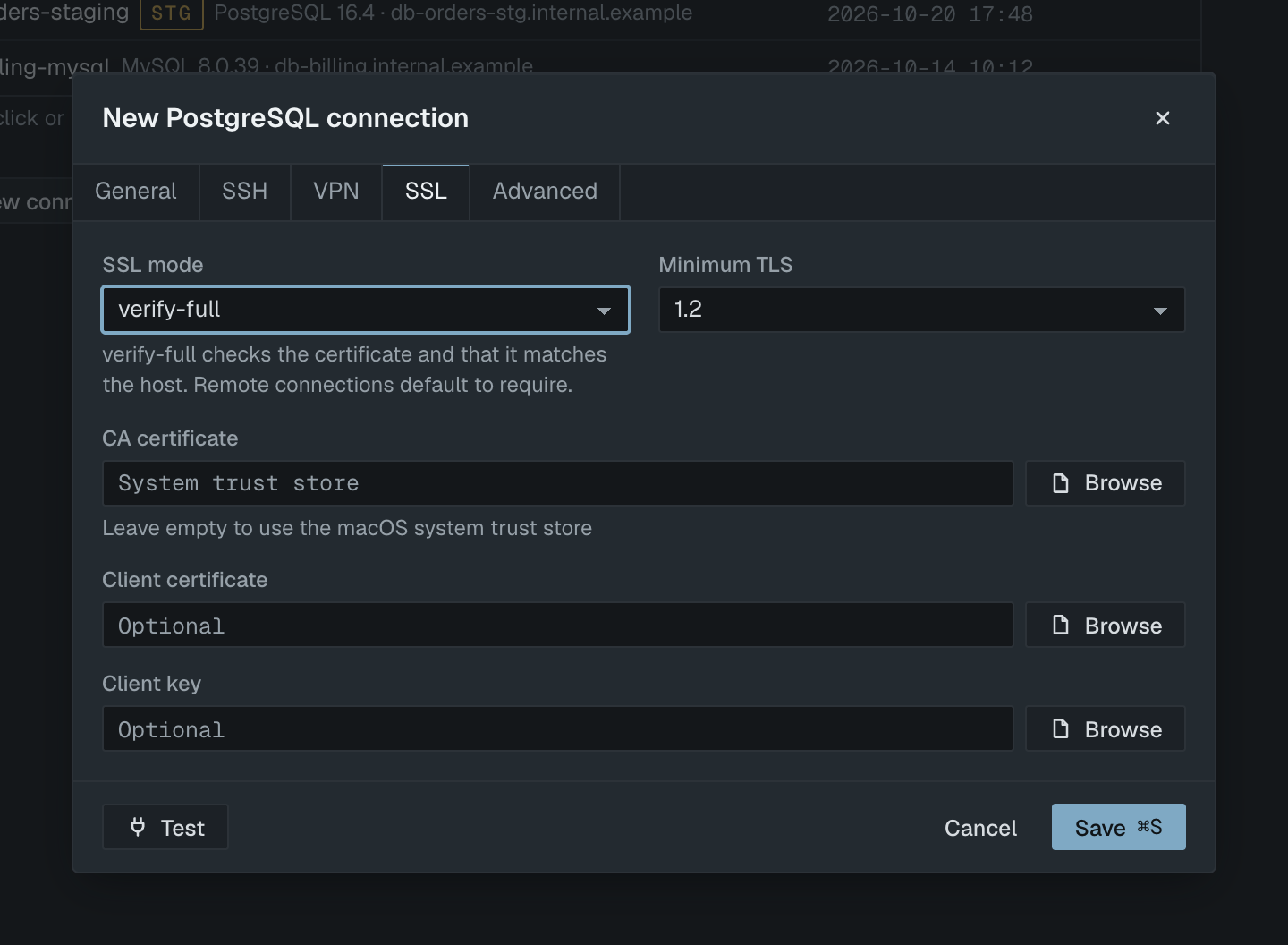
- CA certificate: a PEM file to verify the server against. Leave it empty to use the macOS system trust store.
- Client certificate and Client key: optional, for servers that require certificate authentication (PostgreSQL and MySQL).
- Minimum TLS: 1.2 (default) or 1.3. With 1.3, a server that only negotiates TLS 1.2 fails the test with a message naming the version it offered.
After a successful test, the banner shows the negotiated TLS version, such as TLS 1.3, or no TLS.
Untrusted certificates and pinning
When a verifying mode cannot trust the server certificate, the test stops at the TLS handshake, before any password is sent, and the Server certificate not trusted dialog opens. It shows the certificate's subject, issuer, expiry date, the current mode and CA, and its SHA-256 fingerprint. You have three choices:
- Cancel leaves everything as it is.
- Switch to verify-full with a CA file… (VERIFY_IDENTITY for MySQL, Encrypt and verify for SQL Server) sets the strict mode and opens a file picker for the CA certificate. This is the right fix when your organisation has its own CA.
- Trust this certificate for this connection pins that exact certificate. The test runs again, and the SHA-256 fingerprint is saved with the connection when you click Save.
A pinned connection accepts only that one certificate. When the server's certificate is renewed or replaced, the test stops again and shows the new certificate, so a swapped certificate never goes through silently. Expired certificates cannot be pinned; the dialog marks them as expired and only offers the CA route.
For PostgreSQL and MySQL, Selekta enforces the pin through a small relay on 127.0.0.1 that speaks TLS to the server and accepts only the pinned certificate. For SQL Server, whose TLS runs inside its own protocol, the pin is checked on a separate handshake just before each connection.