
How to connect to Redis on a Mac
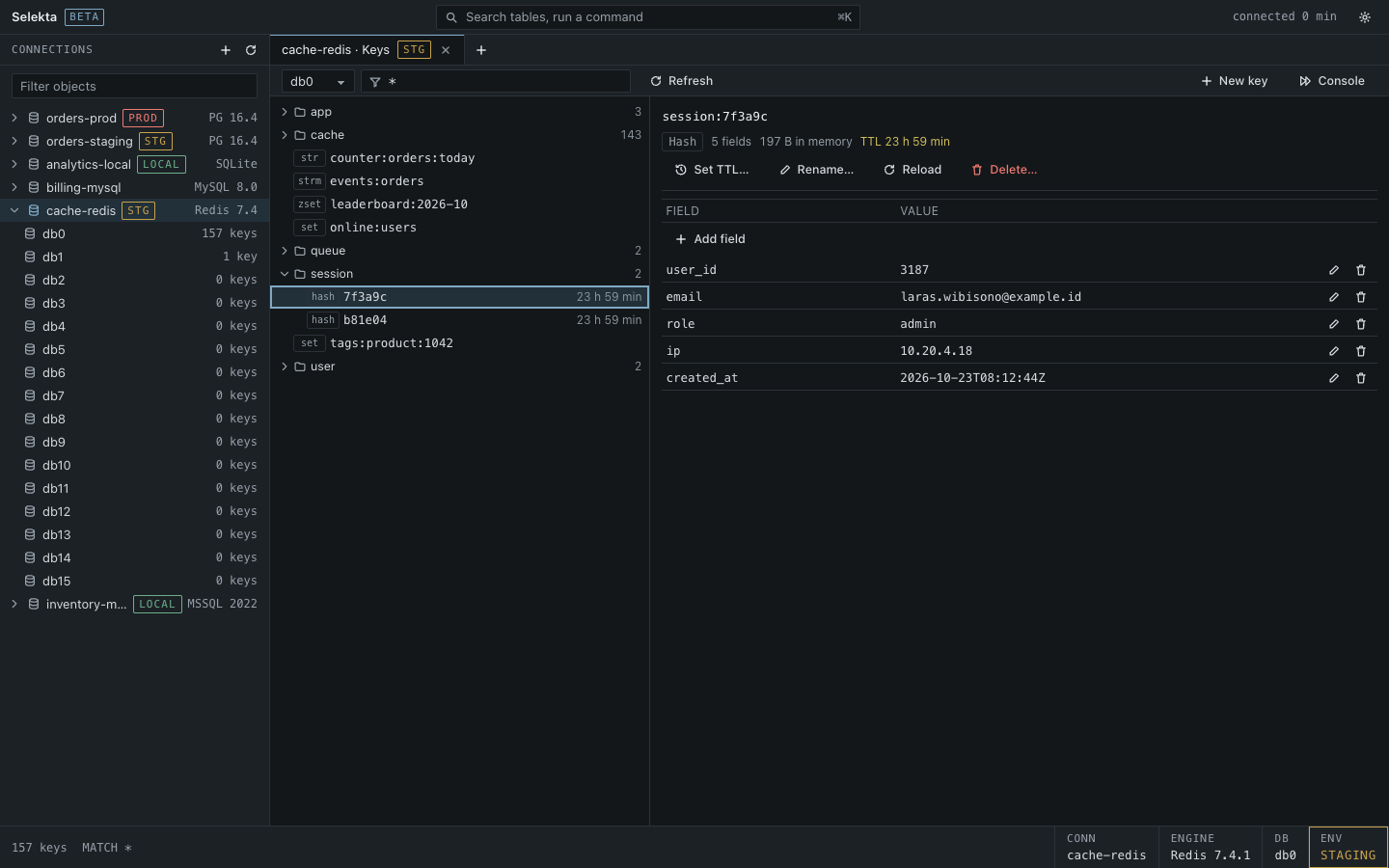
To connect to Redis on a Mac, create a new Redis connection in Selekta with the server's host, port 6379, the database index (usually 0) and the password, leave User empty unless the server uses ACL users, then click Test and Save. The Keys tab opens and lists the keys grouped by prefix.
The driver is built in, so there is nothing to install and no redis-cli needed. This guide covers the connection fields, TLS for managed servers, reaching a private server through SSH, and how to look at keys without slowing the server down.
What you need
- Host and port. Redis listens on
6379by default. Managed services often use another port, such as6380for TLS. - The password, set by
requirepassor the service's console. A local development server may have none. - A user name, only with ACL users. Redis 6 and later can have several users. Leave the field empty to sign in as
default. - Whether the server uses TLS. Most self-hosted servers do not; most managed ones do. Ask, because Redis cannot fall back from one to the other.
Connect step by step
- Open Selekta and press ⌘N, then pick Redis.
- Fill in Name and choose the Environment. Pick Production for a production cache, so wiping commands ask for the connection name.
- Enter Host and Port, and the Database index to open first (usually
0). - Leave User empty, or enter the ACL user name, then enter the Password. It is stored in the macOS Keychain.
- If the server uses TLS, open the SSL tab and choose Encrypt and verify.
- Click Test (⌘T). The result shows the Redis version, the user you signed in as and how many keys the database holds.
- Click Save (⌘S). Selekta connects and opens the Keys tab.
You can also paste a URL such as redis://:[email protected]:6379/0, or rediss:// for TLS, on the first step of the dialog. The fields fill in from it, and the password goes to the Keychain.
TLS on managed servers
On the SSL tab:
- Encrypt and verify checks the certificate against the system trust store and the host name. Use it for managed servers with a public certificate.
- If the server uses its own certificate authority, choose that CA file under CA certificate.
- If the test says the certificate is not trusted, it shows who issued it and its fingerprint. Compare them with what the server's owner gave you, then trust that one certificate. Selekta then accepts only it.
- Encrypt, skip verification accepts any certificate. Keep it for self-signed test servers.
A private server through SSH
Redis on a company network usually listens only on a private address. Open the SSH tab, tick Connect through an SSH tunnel and enter the bastion host, user and key. On the General tab, enter Redis's host as the bastion sees it, often 127.0.0.1 when Redis runs on the bastion itself. See Connect to a database through an SSH tunnel.
Looking at keys without hurting the server
The Keys tab never runs KEYS *, which blocks Redis while it walks every key. It uses SCAN in steps of about 2,000 keys, and Load more keys continues.
- Type a pattern such as
session:*and press ↵ to scan only matching keys. - Choose a key to see its type, size, TTL and contents. Long lists and hashes load 200 entries at a time.
- Edit a string and click Save: the TTL is kept. Hash fields edit in place.
For everything else, open the Console. It runs one command per line and prints answers like redis-cli. FLUSHDB and FLUSHALL always ask first, and on a Production connection you type its name. A read-only connection refuses every write before it is sent.
If it fails
- An error with WRONGPASS: the password, or the user and password together, are wrong. Leave User empty if the server only has a password.
- An error with NOAUTH: the server needs a password and none was given.
- Connection refused on port 6379: Redis is not listening there, or only on
127.0.0.1of its own machine. Use an SSH tunnel. - The test times out or the connection closes at once: often the server expects TLS and you connected without it, or the other way round. Switch the SSL mode.
- "The database index is a number": Redis databases are numbered, so enter
0,1and so on, not a name.