
SQL editor
The SQL editor runs the statement under the caret with ⌘↵ and the whole script with ⌥X, each statement getting its own result tab. Every SQL tab has its own session on one connection, so its schema, transaction and history stay with that tab.
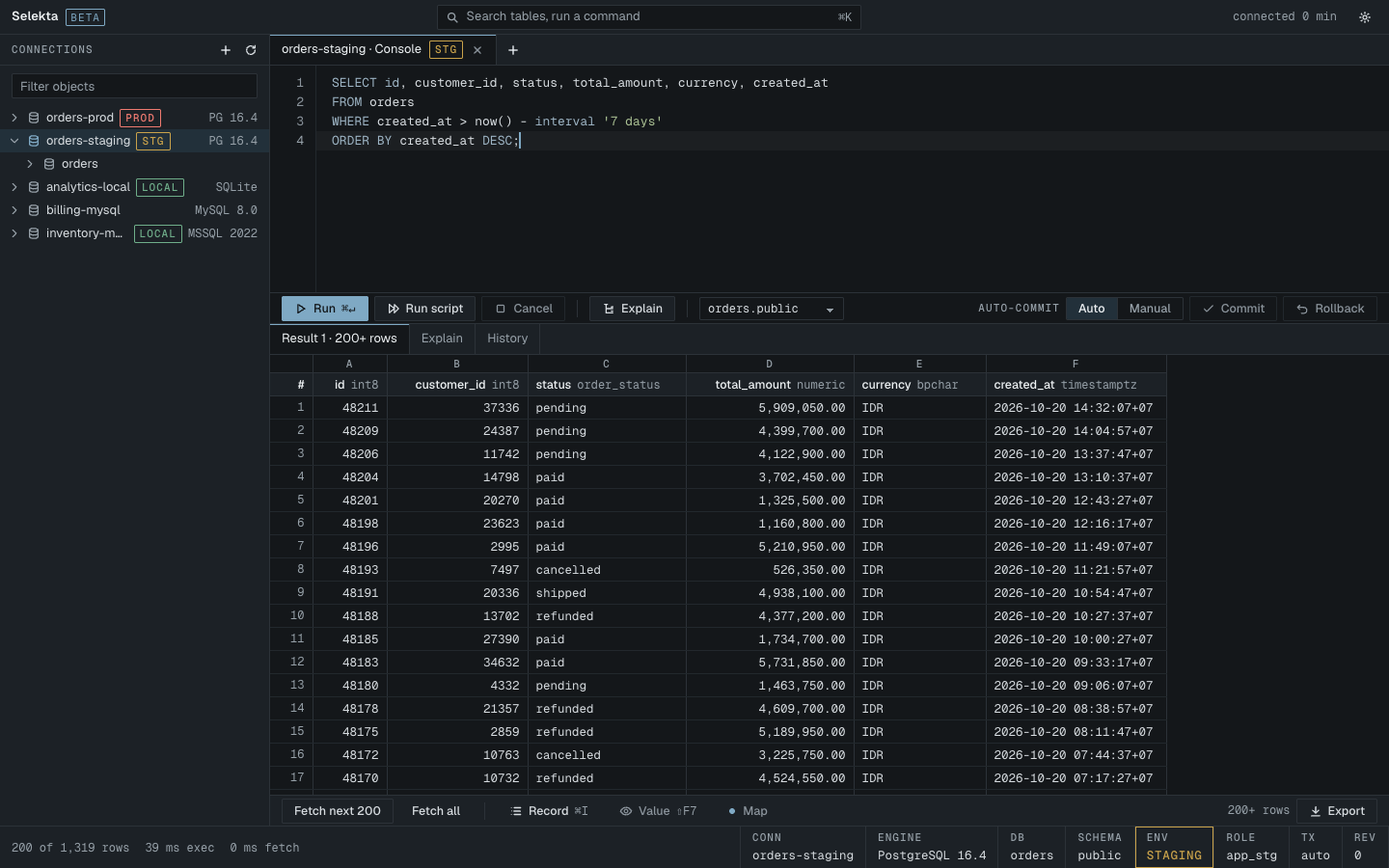
Run statement or run script
Open a new script with ⌘]. The tab is bound to the connection selected in the navigator, and the action bar shows the active database and schema.
- Run (⌘↵) runs one statement. With no selection it picks the statement that contains the caret, or one on the same line as the caret. A caret on an empty line of its own runs nothing, so you never re-run the statement above by accident.
- With a selection, Run sends exactly the selected text. If the selection holds more than one statement, it runs as a script.
- Run script (⌥X) runs every statement in the tab in order. Each one gets a result tab such as
2 · SELECT 200 rows, and an Output tab lists every statement with its duration and outcome. Statements after a failure are listed asnot run.
Statements are split by the app's backend for each dialect: strings, comments, Postgres dollar quotes, MySQL backticks and SQL Server brackets are respected, and on SQL Server a script runs batch by batch between GO lines.
If you turn off Run statement under cursor in Settings › Editor, ⌘↵ without a selection runs the whole script instead.
Fetching rows
Query results arrive one page at a time. The page size is the fetch size in Settings › Data grid (200 rows by default). Below the grid, Fetch next reads the next page and Fetch all reads the rest. Fetch all asks first when the planner estimates more than 50,000 rows or the size is unknown, and offers Export instead.
When a statement fails and the server reports a position, the editor marks the word in the script and the result tab turns red.
Cancel a running query
Press Cancel or ⌘. while a statement runs or rows are still being fetched. Selekta asks the server to stop the statement: pg_cancel_backend on PostgreSQL, KILL QUERY on MySQL, a TDS attention on SQL Server and sqlite3_interrupt on SQLite. The status line shows what was sent while it waits.
If the server has not stopped the statement after 5 seconds, a Terminate connection button appears (not on SQLite). It is never pressed for you. Terminating ends the server connection, so an open transaction is rolled back, and a new session opens in the same commit mode.
After a cancel, a banner says what happened to your transaction, for example that the statement was rolled back but the transaction is still open, with Run again or Explain instead where they make sense. Cancelled statements stay in History as VOID.
Parameters
Write :name or ${name} in a statement to make it a parameter. Placeholders inside strings, comments and quoted names are ignored, and ::int casts are not mistaken for one.
When you run a statement with placeholders, a popover such as Bind 2 parameters opens with one field per name, in order of first appearance:
- Type a value in each field. ⇥ moves to the next one.
- Type
NULL(any case) for SQL NULL. - Leave Remember values for this script on to prefill the fields next time, with a "last used" time under each.
- Press Run or ⌘↵.
Values are never pasted into the SQL as typed. On SQLite they are sent as bound parameters. On PostgreSQL, MySQL and SQL Server they are sent as quoted, escaped literals, so it's becomes 'it''s'. Both :name and ${name} are handled the same way. The help line under each field shows how its value will be sent. History records the statement with the values filled in.
Autocomplete, format and comments
Autocomplete
As you type, the editor suggests tables, columns and keywords for the active schema, read from the connection's catalogue. Press ⌃Space to open the list at any time. While the catalogue loads, the list shows one muted "Loading metadata for…" row and keywords stay available. Turn off Autocomplete while typing in Settings › Editor if you only want the list on demand.
Changing the schema in the action bar changes what completes. On PostgreSQL it also sets the session search_path (your schema first, the original path after it), on MySQL it runs USE. On SQL Server the picker only scopes completion and unqualified names.
Format SQL
⇧⌘F formats the selection, or the whole script when nothing is selected, in the dialect of the connection. Keyword case is kept as you wrote it and indentation follows the tab size in Settings. Undo restores the previous layout. Format SQL before run in Settings › Editor is off by default, so what you typed is exactly what runs and lands in history.
Comments
⌃/ comments or uncomments the current line or selection.
Save scripts
Press ⌘S to save the tab as a .sql file. New tabs are called Script-1, Script-2 and so on. The first save writes the file into Selekta's scripts folder in its app data directory, in a subfolder for the tab's connection, and names it after the tab. If that name is taken, a number is added.
If another program changed the file since you opened it, saving does not overwrite it silently. A dialog offers Overwrite, Reload from disk or Cancel. When the file changes on disk while your tab has no edits, a banner offers Reload or Keep this version.
Find saved scripts
Run Show scripts from the command palette (⌘K). Scripts are grouped by connection, newest first. Click one to open it; the context menu has Open, Rename and Move to Trash…. A dot marks a script whose open tab has unsaved changes. Deleting moves the file to the macOS Trash.
Unsaved scripts
You do not lose a script you never saved. About a second after each change, and right before quitting, Selekta stores the text of every SQL tab in its own database (not in your script files). On the next start the tabs reopen with that text, as long as Restore tabs on start is on in Settings › General.
Closing a tab with unsaved edits asks Save changes to Script-1? with Save (the default), Cancel and Don't save. If the tab also has uncommitted statements in a manual transaction, you first choose whether to commit or roll them back. See manual commit.
History
Every statement you run on any connection is recorded with its time, duration and outcome. Each SQL tab has a History result tab for its own statements. For all of them, open Query history with ⇧⌘H:
- Search statement text, filter by connection, or switch to VOID only.
- VOID entries are statements that never took effect: cancelled queries, rolled-back statements, discarded grid edits and statements blocked on a read-only connection. Each says why.
- Double-click an entry to open it in a new SQL tab, or use Open in editor and Copy SQL on a VOID entry.
- Entries are grouped by day, and statements over one second are marked slow.
History stays on your Mac. How long it is kept is set in Settings (90 days by default). Password literals in statements such as ALTER ROLE ... PASSWORD '...' are stored masked.