
Export a PostgreSQL or MySQL table to CSV or Excel
To export a PostgreSQL or MySQL table to CSV or Excel, open the table in Selekta, click Export (or press ⇧⌘E), choose CSV or XLSX, set the delimiter, NULL and date options, pick a file and click Export. Without an app, use \copy in psql for PostgreSQL, or the mysql client in batch mode for MySQL.
The export reads every row of the table or query, not just the rows on screen, and streams them to disk. The rest of this guide covers the options and what each SQL alternative can and cannot do.
Export with Selekta, step by step
- Connect, then open the table: double-click it in the navigator, or press ⌘O and type its name.
- Optional: type a condition into Where, such as
created_at >= '2026-01-01', and press ⌘↵. The export then contains only the matching rows (the source reads "· filtered"). - Click Export in the bottom bar, or press ⇧⌘E. The wizard has four steps: Format, Options, Destination, Export.
- Format: choose CSV ("Comma or tab separated text. Opens in any spreadsheet."), XLSX ("Excel workbook, one sheet."), JSON or SQL INSERT. Click Next.
- Options: set the format options described below. For CSV, JSON and SQL a Preview · first 3 rows shows exactly what will be written. Click Next.
- Destination: the file name defaults to the table name and today's date in your Downloads folder, for example
orders_2026-10-23.csv. Use Browse… to change it, and tick Open folder after export if you want Finder to show the file. - Click Export. A progress view shows rows written, elapsed time and bytes. Click Continue in background to keep working; the status bar shows progress and a notice says when it is done.
- When it finishes, the wizard shows the row count, file size and duration, with Open file and Show in Finder.
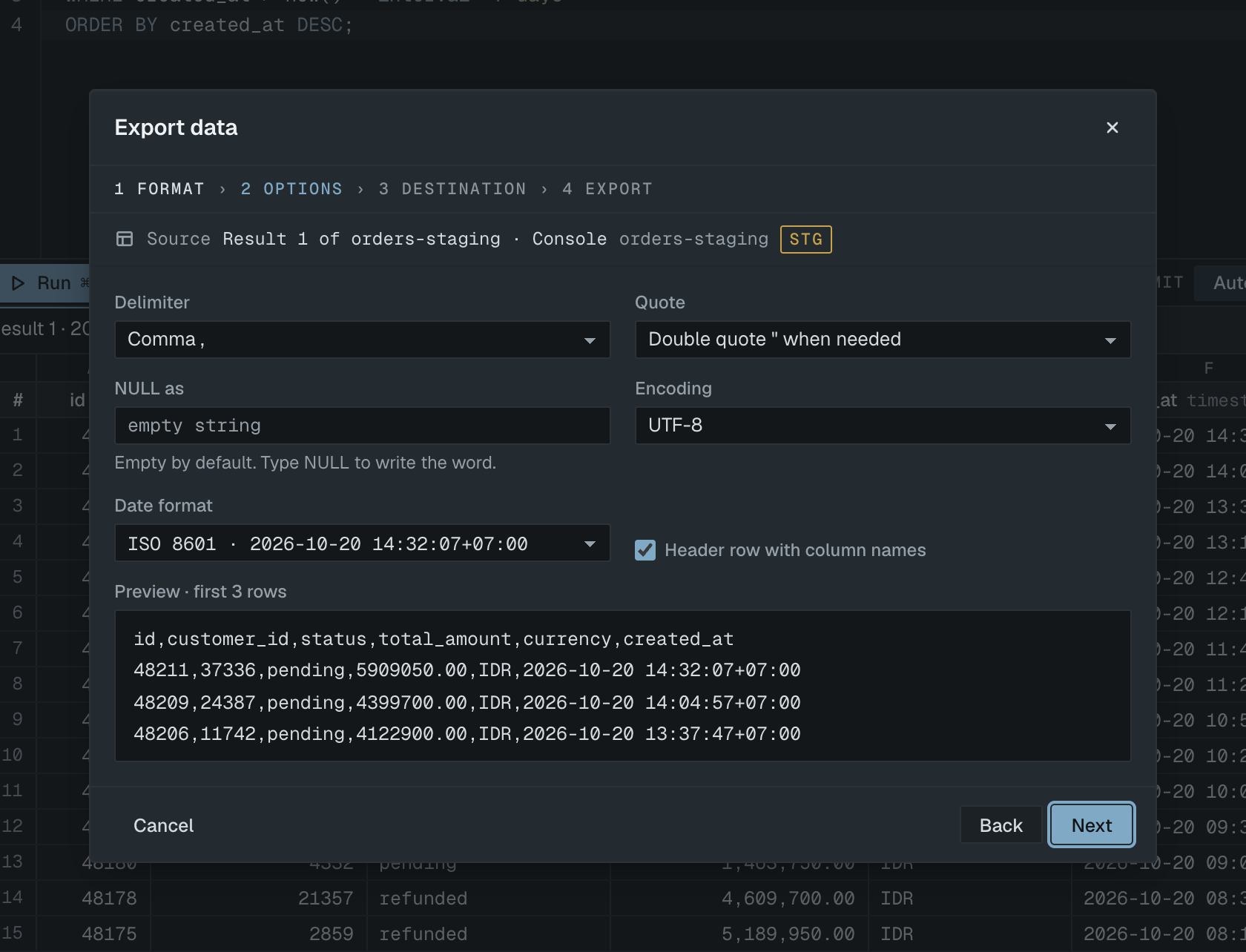
You can also export the result of any query: run it in a SQL tab and click Export on the result (⇧⌘E). The query runs again on its own connection, so your tab stays usable, and every row is exported, not only the fetched ones.
CSV options
- Delimiter: Comma, Semicolon, Tab or Pipe. Spreadsheets set to a European locale often expect a semicolon.
- Quote: double or single quote, added only when a value contains the delimiter, a quote or a line break.
- NULL as: empty by default, so a NULL and an empty string look the same in the file. Type
NULL(or\N) if the receiving system must tell them apart. The preview notes which row holds a NULL and how it is written. - Encoding: UTF-8, UTF-8 with BOM (Excel on Windows), or ISO-8859-1. Choose the BOM variant if the file will be opened by double-clicking in Excel on Windows, or accented characters may show up garbled.
- Date format: ISO 8601 (the default) writes timestamps as
2026-10-20 14:32:07+07:00, which spreadsheets read as dates. As stored writes them exactly as the server sent them. - Header row with column names: on by default.
XLSX options
- Sheet name: 31 characters at most, without
: \ / ? * [ ]. - Header style: Bold, frozen first row or No header row.
XLSX cells keep their types. Numbers become Excel numbers (decimals keep their scale, so 10.50 stays 10.50), booleans become TRUE and FALSE, and dates and timestamps without a time zone become real Excel dates. Values with a time zone, such as PostgreSQL timestamptz, stay text, because Excel has no time zones and converting would change the wall time. Integers longer than 15 digits also stay text so they are not rounded, and text longer than Excel's 32,767-character cell limit is cut.
An XLSX sheet holds 1,048,576 rows including the header. If Selekta knows the table is bigger, the Options step warns you and offers Stop at limit (write the first 1,048,575 rows) or Use CSV.
Big tables
Rows stream from the database to a temporary .partial file that is renamed when the export completes. If you cancel, or the export fails, the partial file is deleted, so nothing incomplete is left on disk. For tables with millions of rows, prefer CSV: it has no row limit, and the file is written as rows arrive. For small results, the Destination step offers Copy to clipboard instead of a file (up to 10,000 rows).
Without the app: PostgreSQL
COPY … TO 'file' writes the file on the database server, and needs superuser rights or the pg_write_server_files role. To get the file on your Mac, use COPY … TO STDOUT, which psql wraps as \copy:
psql "postgres://[email protected]/orders" \
  -c "\copy (SELECT * FROM orders WHERE created_at >= '2026-01-01') TO 'orders.csv' WITH (FORMAT csv, HEADER)"
Add NULL 'NULL' to the options to write NULLs as a word instead of an empty field. COPY has no Excel output; open the CSV in Excel or Numbers and save it as a workbook.
Without the app: MySQL
SELECT … INTO OUTFILE has several catches:
SELECT * FROM orders
INTO OUTFILE '/var/lib/mysql-files/orders.csv'
FIELDS TERMINATED BY ',' OPTIONALLY ENCLOSED BY '"'
LINES TERMINATED BY '\n';- The file is written on the database server's disk, not on your Mac.
- It needs the
FILEprivilege, and thesecure_file_privsetting limits which folder it may write to (often/var/lib/mysql-files/, or nowhere at all). - Most managed MySQL services do not allow it.
- It writes no header row, NULL becomes
\N, and it refuses to overwrite an existing file.
From your Mac, the mysql client's batch mode is usually easier. It writes tab-separated text with a header row:
mysql -h db.example.com -u app -p --batch -e "SELECT * FROM orders" shop > orders.tsvIn batch mode NULL is written as the word NULL, and tabs or newlines inside values are escaped as \t and \n.
If it fails
Permission denied: cannot write to /Library/Exports. Choose a folder you own, such as ~/Downloads. macOS does not let Selekta write there. Pick another folder with Browse… and click Retry export.
Not enough free space on /Volumes/USB: … The disk filled up. The partial file was deleted; free some space or choose another disk.
The result has more than 1,048,575 rows, the most an XLSX sheet holds. Export it as CSV, or narrow the query. The row count was not known in advance and the result outgrew one sheet. Click Back to options and switch to CSV, or add a Where filter.
Not allowed: : \ / ? * [ ] under Sheet name: remove those characters; Excel does not accept them in sheet names.
The MySQL server is running with the --secure-file-priv option so it cannot execute this statement (from INTO OUTFILE): write into the folder SHOW VARIABLES LIKE 'secure_file_priv' names, or export from the client side instead.