
Export and import data
Click Export above any result, or press ⇧⌘E, to write every row to a CSV, JSON, SQL INSERT or XLSX file. To load a CSV file into a table, right-click the table in the navigator and choose Import CSV…. Both run in the background and never leave a half-written file or a half-imported table.
Export a result or table
- Open a table's data, or run a query in the SQL editor.
- Click Export in the result toolbar, or press ⇧⌘E.
- Pick a format, set its options, choose where to save, then click Export.
The wizard has four steps: Format, Options, Destination and Export. Press Return to move to the next step.
Export writes every row, not only the rows on screen. For a query result, the query runs again with the same parameters. For a table, every row of the table is read. Export accepts one read-only statement: a statement that changes data is refused.
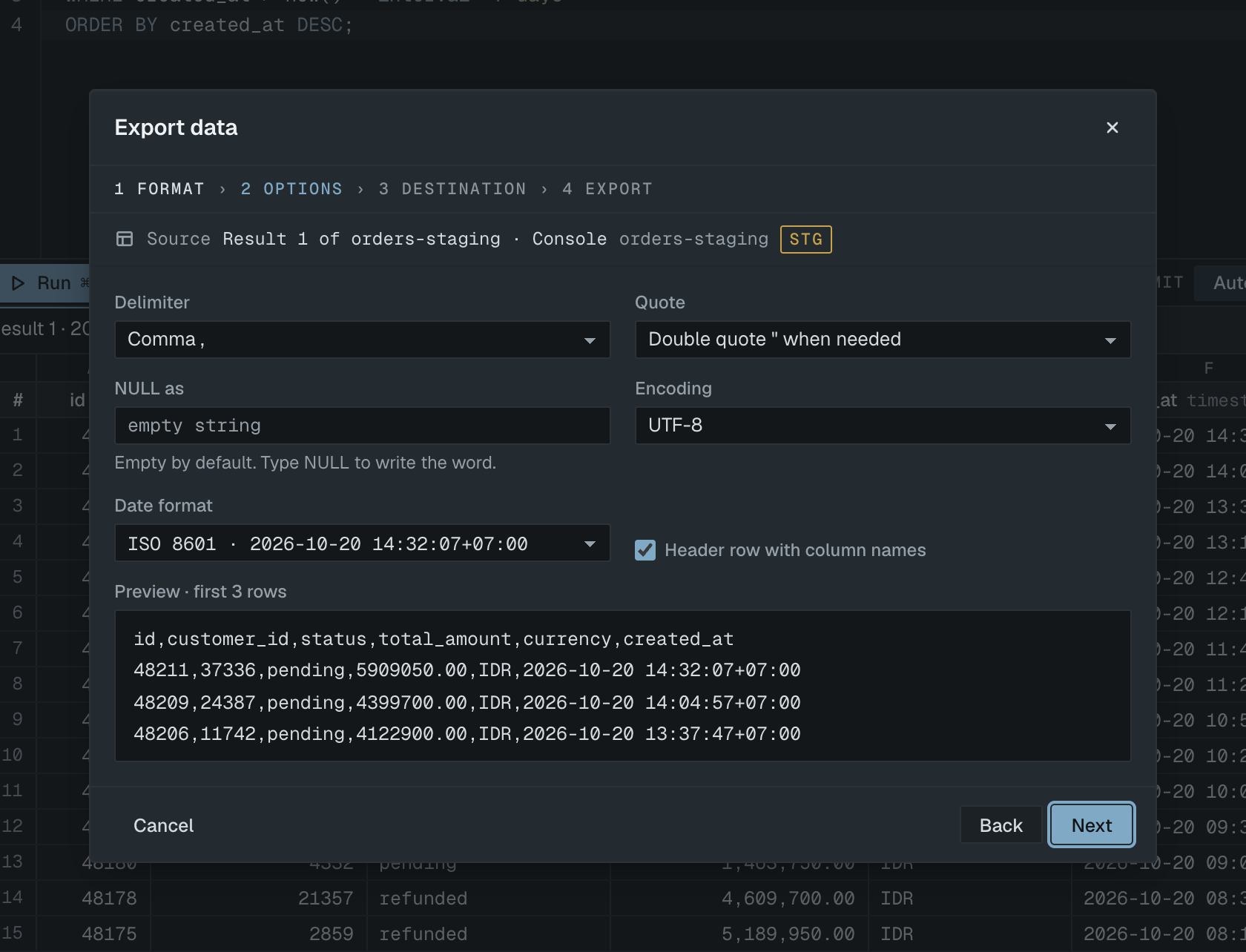
Export formats and options
| Format | Options |
|---|---|
| CSV | Delimiter: Comma, Semicolon, Tab or Pipe. Quote: double or single quote, only when a field needs it. NULL as: empty by default, or any text such as NULL. Encoding: UTF-8, UTF-8 with BOM, or ISO-8859-1. Date format. Header row with column names. |
| JSON | An array of objects, one per row. Pretty print (2-space indent). Date format. Numbers, booleans and JSON columns stay JSON values. Geometry becomes GeoJSON. |
| SQL INSERT | Table name and Rows per INSERT (1 to 10,000). Values are quoted for the connection's database. |
| XLSX | One sheet. Sheet name (31 characters at most, without : \ / ? * [ ]) and Header style: a bold, frozen first row, or no header. |
Date format is either ISO 8601, for example 2026-10-20 14:32:07+07:00, or As stored, the text the database returned.
For CSV, JSON and SQL, the Options step shows the first three rows as they will be written, and updates as you change options.
Choose UTF-8 with BOM when the file will be opened by a spreadsheet on Windows. With ISO-8859-1, characters outside that set are written as ?.
XLSX row limit
An XLSX sheet holds 1,048,576 rows including the header. When a source has more rows, the wizard warns you and offers Stop at limit (write the first 1,048,575 rows) or Use CSV (switch format, no row limit).
Destination
The file name defaults to the source name and today's date in your Downloads folder. Browse… asks before it replaces an existing file. Tick Open folder after export to see the file in Finder when it is done.
When a result has 10,000 rows or fewer, you can skip the file with Copy to clipboard. XLSX is copied as tab-separated text, which pastes into a spreadsheet.
While an export runs
The wizard shows rows written, elapsed time and bytes written. Continue in background closes the wizard; the status bar keeps showing progress and a notice appears when it finishes. Cancel export stops it.
Selekta writes to a temporary file next to the destination and renames it only when the export is complete. If the export fails or is cancelled, the partial file is deleted, so nothing incomplete is left on disk.
Import a CSV file into a table
- In the navigator, right-click a table and choose Import CSV….
- File: drop a
.csv,.tsvor.txtfile on the wizard, or click Browse…. - Mapping: check which file column goes into which table column.
- Preview: review the checked rows and choose what happens on errors.
- Click Import.
Import CSV… is disabled for views and on read-only connections.
File options
| Option | Choices |
|---|---|
| Encoding | Auto-detect, UTF-8, Windows-1252, or ISO-8859-1 (Latin-1). Auto-detect reads the file as UTF-8 and skips a UTF-8 BOM. |
| Delimiter | Auto-detect, Comma, Semicolon, Tab or Pipe. Auto-detect picks the one that splits the first lines most consistently. |
| NULL marker | Empty by default: an empty field becomes NULL. Type NULL or \N to keep empty fields as empty text and treat only that marker as NULL. |
| Decimal comma (1.234,56) | Reads numbers such as 1.234,56 as 1234.56. |
| First row is a header | On by default. Header names are used to match columns. |
The detected encoding and delimiter appear next to Auto-detect once the file is read.
Mapping
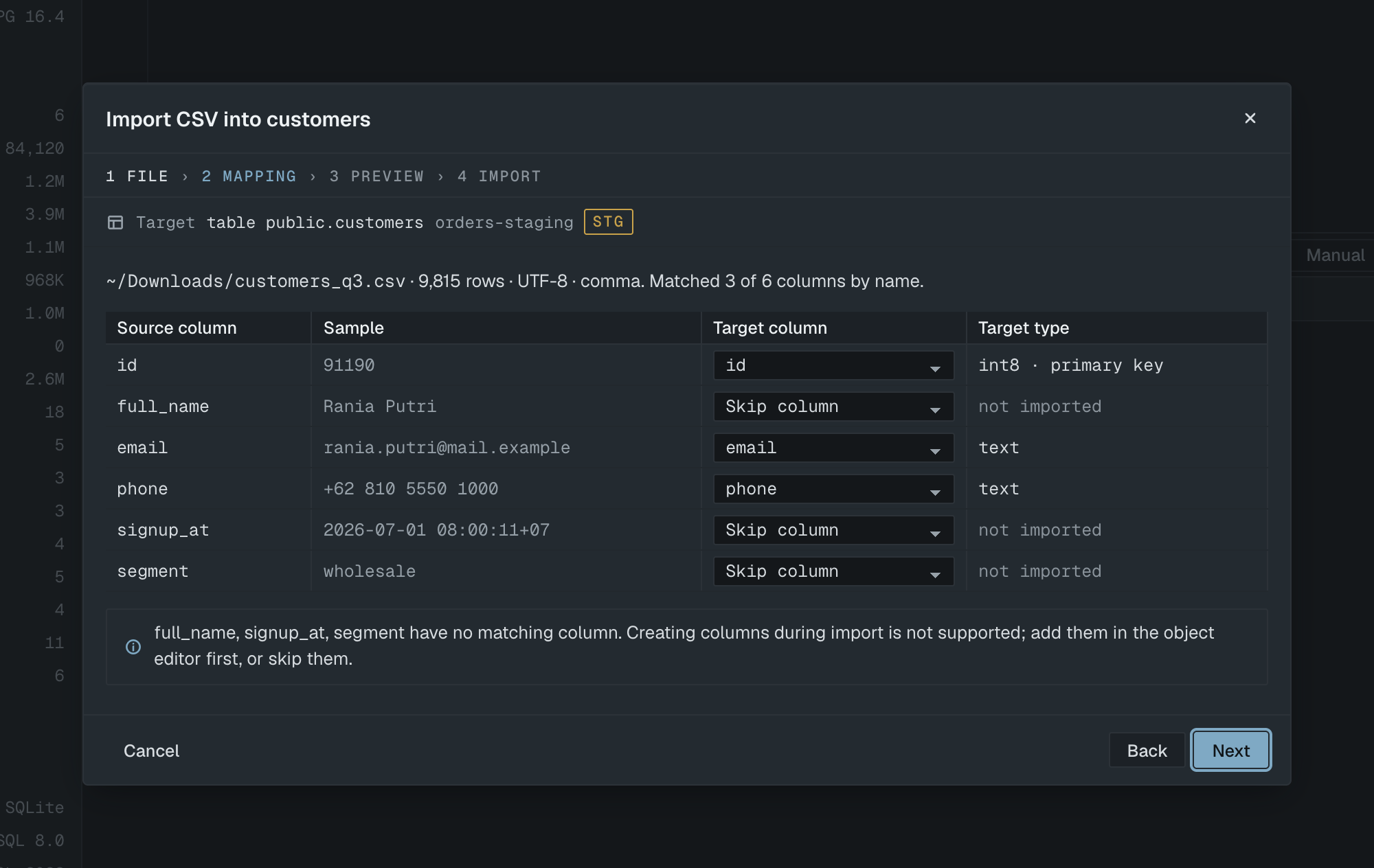
Selekta matches file columns to table columns by name, exactly first, then ignoring case. For each source column, choose a target column or Skip column. Each target can be used once.
The wizard will not continue while a NOT NULL column without a default is unmapped. File columns with no matching table column must be skipped: import does not create columns. Add them in the structure editor first.
Preview and errors
The Preview step checks the first 100 rows against the column types and underlines invalid cells: a value too long for a varchar, text in an integer column, an invalid date, boolean, UUID or JSON. Click an error in the list to jump to its cell.
Choose an error policy:
- Skip bad rows: import the valid rows. Rejected rows are saved to a CSV file with the original rows plus an error column, so you can fix them and import that file.
- Stop on first error: roll back everything if any row fails. Nothing is written.
How the import runs
The whole import is one transaction, committed at the end. Rows are inserted in batches of 500. When a batch fails, Selekta retries its rows one by one to find the bad ones. The table is unchanged until the import finishes. Cancel and roll back rolls back every row inserted so far.
When it is done, Open table shows the table with the newest rows first. If rows were rejected, Open rejected file opens the CSV of rejected rows.