
Results and editing data
Query results and table data share one grid: you can select, filter, copy and inspect rows in both. On a table's Data tab, edits become amber revisions that you review as SQL and apply in one step, so nothing reaches the server until you have seen the statements.
The result grid
Rows are shown with sheet letters (A, B, C) over the columns and row numbers on the left. Typed cells keep their meaning: NULL is shown as NULL, numbers align right, JSON, binary and geometry values get their own display.
- Click a cell, drag or Shift-click for a range, click a row number for whole rows, click a column letter for the whole column.
- Click a column header to sort. In SQL results this sorts the fetched rows only. On a table's Data tab it re-reads the table with
ORDER BY, and a chip in the filter bar shows the order. - Drag a header edge to resize a column.
- Find in results (⌘F) jumps between cells that contain the text.
- Right-click for Copy, Copy as…, Record and Value.
The footer has Fetch next and Fetch all for the rest of a large result, Record, Value, Map for results with a geometry column, and Export (⇧⌘E).
Filter rows
Filter fetched rows
⇧⌘L opens a filter bar above the grid. It keeps the rows whose displayed text contains what you type, in any column, and shows a count such as 12 of 200 rows. It runs on the rows already fetched and sends nothing to the server. New rows you added on the Data tab and not yet applied always stay visible.
WHERE filter on the Data tab
A table opened from the navigator reads SELECT * FROM the table, one page at a time. Type a condition in the Where field and press Apply or ⌘↵:
status = 'paid' AND total_amount > 1000000- ⌃Space completes column names, and after
=orIN (inside a quote it offers values seen in the fetched rows of that column. - The filter must be a single condition: a
;outside a string is refused before anything is sent. - If the server rejects the filter, the error is shown under the field with the caret moved to the position. For an unknown column Selekta suggests the closest name with a Use button.
- The filter and the sort are remembered per table on that connection. Clear removes the filter.
Selection summary and copy
Selection summary
Select two or more cells and the status bar shows count, and when the cells are numbers also sum, min, max and avg. The arithmetic is exact on decimals, not floating point, and NULL cells are left out.
Copy and Copy as
⌘C copies the selection as tab separated text without a header. ⇧⌘C opens Copy as with a format, a scope and a header option:
| Format | What you get |
|---|---|
| TSV | Tab separated |
| CSV | RFC 4180, values quoted when needed |
| JSON | An array of objects, JSON values embedded as stored |
| SQL INSERT | One INSERT INTO per row, for the source table when it is known |
| Markdown table | A pipe table with a header row |
| IN list | (1, 2, 3) from the first column, NULL values skipped |
Scope is Selected cells, Selected rows or All fetched rows. Include header applies to TSV and CSV. Picking a format copies at once. The format and header choice are remembered. Rows not fetched yet are never included; to copy every row use Export.
Value viewer and record panel
Value viewer
⇧F7, or double-click in SQL results, opens the focused value in a side panel:
- JSON: Pretty with line numbers and colours, or Raw, plus size and nesting depth.
- Text: Wrap or No wrap, with character, byte and line counts.
- Binary: size, detected type, an image preview for images, Hex or Text, Copy hex and Save to file. When the grid only holds the start of a large value, Selekta reads the full value again by the row's key, which works for a result from a single table that includes its key columns.
- Geometry: WKT and a small map.
Record panel
⌘I shows the focused row as a list of column, type and value, which is easier to read for wide tables. ⌥↑ and ⌥↓ move to the previous and next row. On the Data tab the fields are editable.
Edit table data with revisions
Open a table from the navigator to get its Data tab. Rows can be edited when the table has a primary or unique key and the connection is not read-only. Otherwise a banner explains why and offers Write UPDATE in SQL editor.
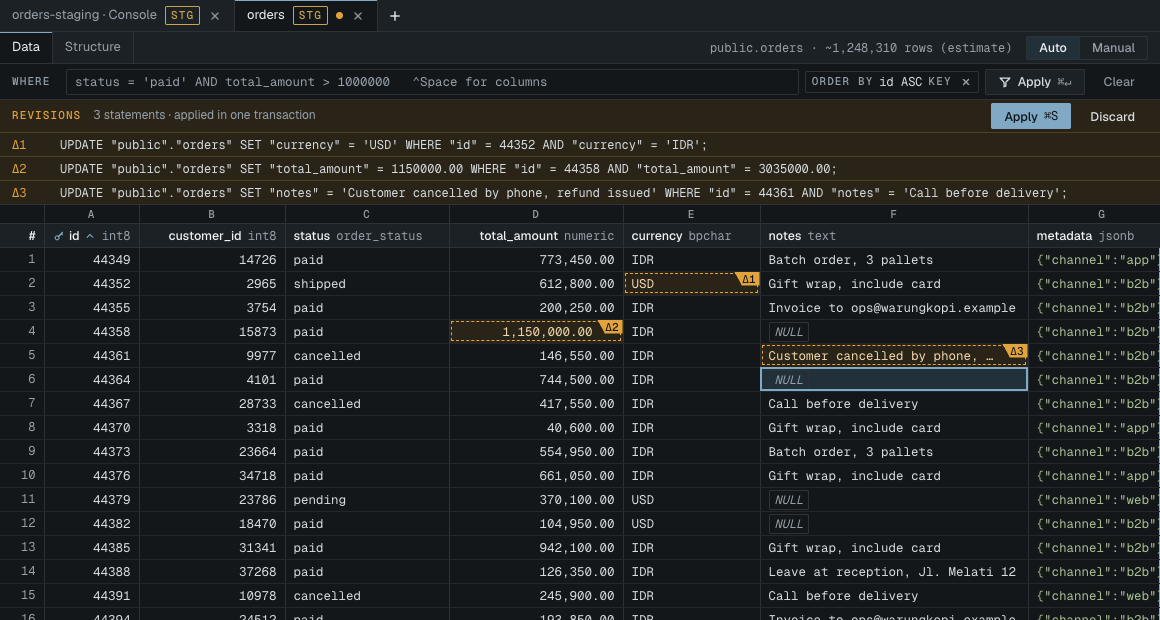
- Double-click a cell or start typing to edit it. Input is checked against the column type before it is accepted.
- Set cell to NULL with ⌘⌫ while editing.
- Add row with ⌥⌘N. Columns with a default show it until you type a value. Required columns (NOT NULL, no default) are flagged before review.
- Select whole rows and use Delete row from the context menu to mark them for deletion.
- JSON and long text open in an edit panel with Apply edit, which checks JSON as you type.
- Key columns, geometry and binary values are not edited in the grid.
Every change becomes a revision: the cell is clouded in amber with a tag such as Δ3, and the Revisions strip lists the exact SQL for each one, in the order it will run. Revisions are only in Selekta until you apply them. Discard drops them and records them in History as VOID.
Review SQL and apply
Press Apply or ⌘S. The Review SQL dialog always opens first, in every environment, titled for example Apply 3 revisions to orders?. It shows the target connection with its environment tag and every statement in execution order.
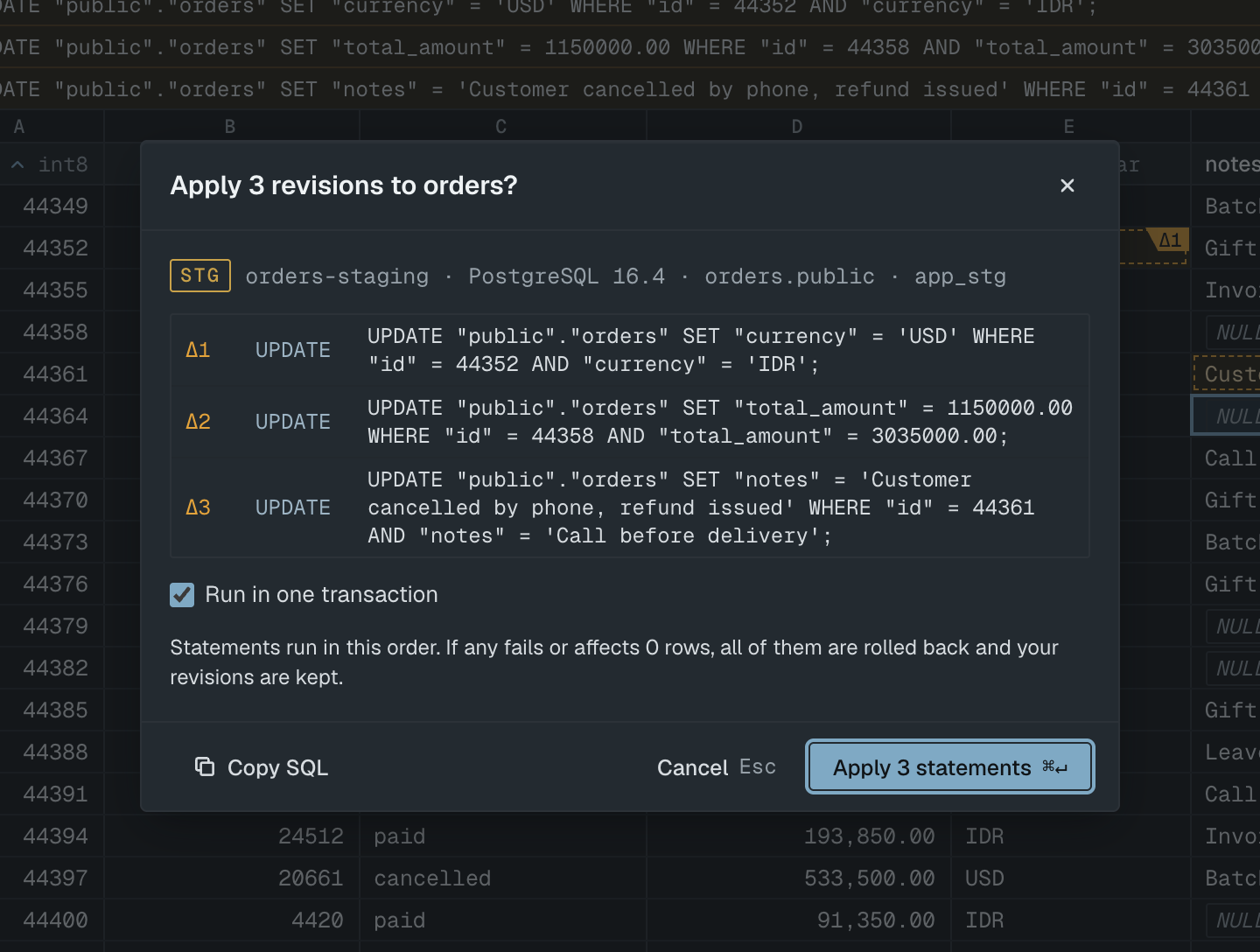
- Leave Run in one transaction on to run all statements together. If any fails or affects 0 rows, all of them are rolled back and your revisions are kept.
- Turn it off to run them one by one; they stop at the first failure and the ones before it stay applied.
- Press Apply or ⌘↵, or Copy SQL to run it yourself.
Each UPDATE and DELETE targets one row by its key and must affect exactly one row. If the row was changed or deleted on the server after you fetched it, apply stops, nothing is written, and the revision is marked with Refresh row and Reapply. After a re-read, unapplied edits on rows that changed on the server are marked too. Values are sent as bound parameters, while the review shows them as literals.
Manual commit
Each SQL tab and each editable Data tab has an Auto and Manual switch in its action bar.
- Auto: every statement, or every apply, commits when it succeeds.
- Manual: statements run inside a transaction that stays open. The bar shows
Manual commitand a pending count, and a Pending strip lists what ran. Nothing is permanent until you press Commit (⌥⌘↵). Rollback (⌥⌘⌫) undoes all of it.
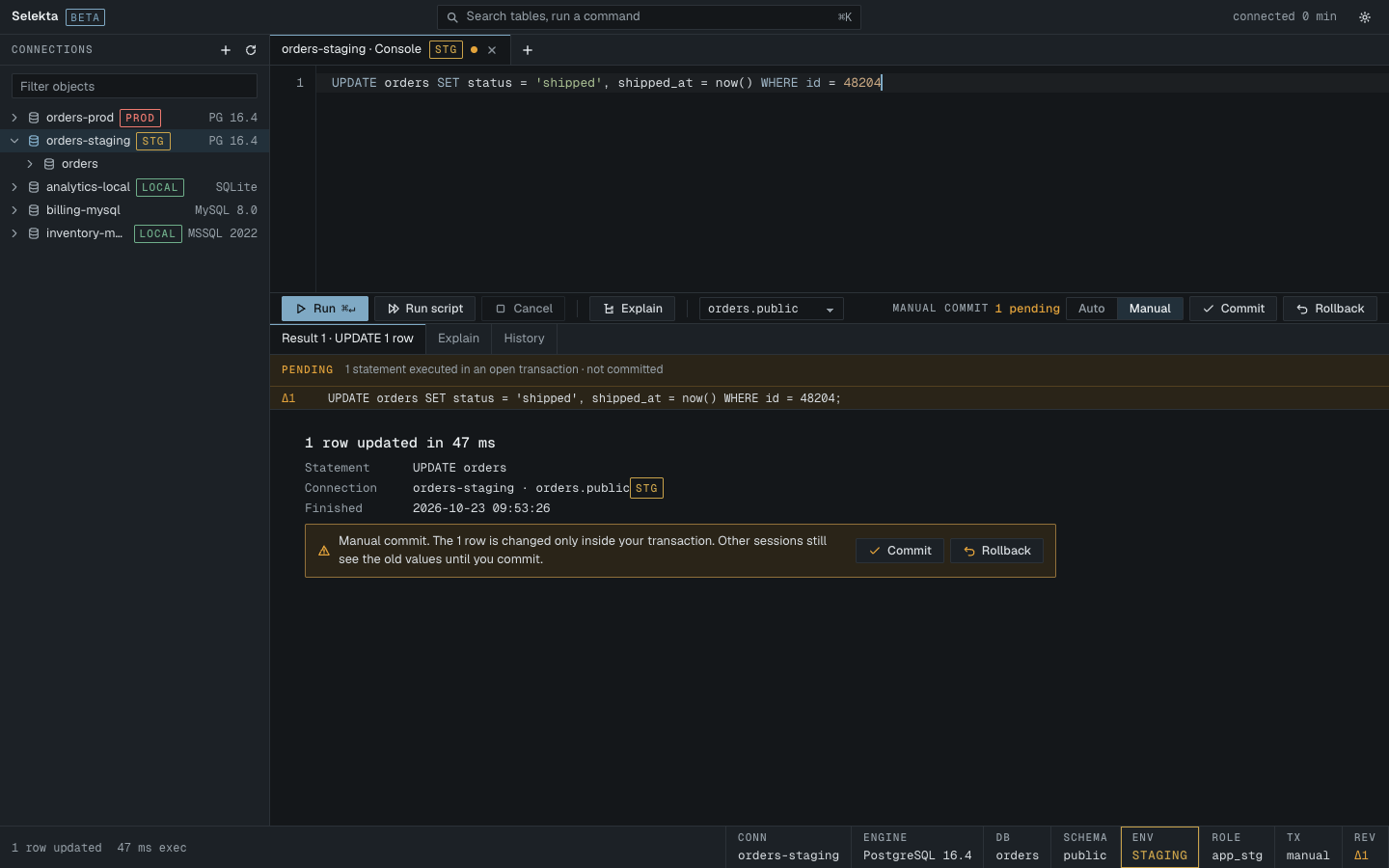
On the Data tab in manual mode, applied revisions wait for Commit. Rolled-back statements are kept in History as VOID.
Selekta protects an open transaction:
- Closing the tab or switching to Auto with pending statements asks you to Commit and close or Roll back and close (or switch). Cancel keeps the tab and the transaction.
- If the connection drops, the server rolls the transaction back. When Selekta reconnects, your statements come back as revisions with Run again, Copy as SQL and Discard.
- If COMMIT fails, a banner shows the server's error and keeps your statements so you can run them again. SQLite keeps the transaction open after a failed commit, so you can fix the cause and commit again.
- On MySQL, a statement that would commit the open transaction implicitly, such as most DDL, is refused while statements are pending.
- When a PostgreSQL transaction is aborted by an error, the bar shows
Transaction abortedand you roll back before continuing.
New SQL tabs and table Data tabs on a Production connection start in manual commit. See Production safety.