
How to open a SQLite file on a Mac
To open a SQLite file on a Mac, click Open SQLite file on Selekta's welcome screen, pick the .db, .sqlite or .sqlite3 file in the Finder dialog, tick Read-only if you only want to look, then click Test and Save. The tables appear in the navigator and you can browse, query and export them.
SQLite needs no server, so there is no host, port or password. Selekta stores only the path to your file and leaves the file where it is.
Where SQLite files live on macOS
SQLite is the most common file format for app data, so you will find .db, .sqlite, .sqlite3 and sometimes extension-less files in many places:
- Your own projects: Django's
db.sqlite3, Rails'storage/development.sqlite3, a Prismadev.db, or a dataset you downloaded. - App data under
~/Library/Application Support/<app>/and~/Library/Containers/<app>/. Many Mac apps keep their data there. - Mobile development: Core Data stores from the iOS Simulator under
~/Library/Developer/CoreSimulator/Devices/.
The ~/Library folder is hidden in Finder. In the file picker press ⇧⌘G and type a path such as ~/Library/Application Support to get there.
Open the file step by step
- Start Selekta. On the welcome screen click Open SQLite file. (With saved connections, the button is in the row under Recent connections. You can also press ⌘N, choose SQLite, and use Browse next to Database file.)
- In the Finder dialog, choose the file. The picker shows
.db,.sqliteand.sqlite3files. - The New SQLite connection dialog opens with Database file filled in. The Name defaults to the file name without its extension; change it if you like.
- Under Options, tick Read-only if you only want to inspect the data. Selekta then opens the file in read-only mode and refuses statements that write.
- Choose an Environment. Local is right for most files on your Mac.
- Click Test (⌘T). The banner shows the SQLite version, the path and the number of tables, for example "Connected to SQLite 3.46.0 in 2 ms." followed by
~/data/analytics.db · 12 tables. - Click Save (⌘S). The connection opens in the navigator.
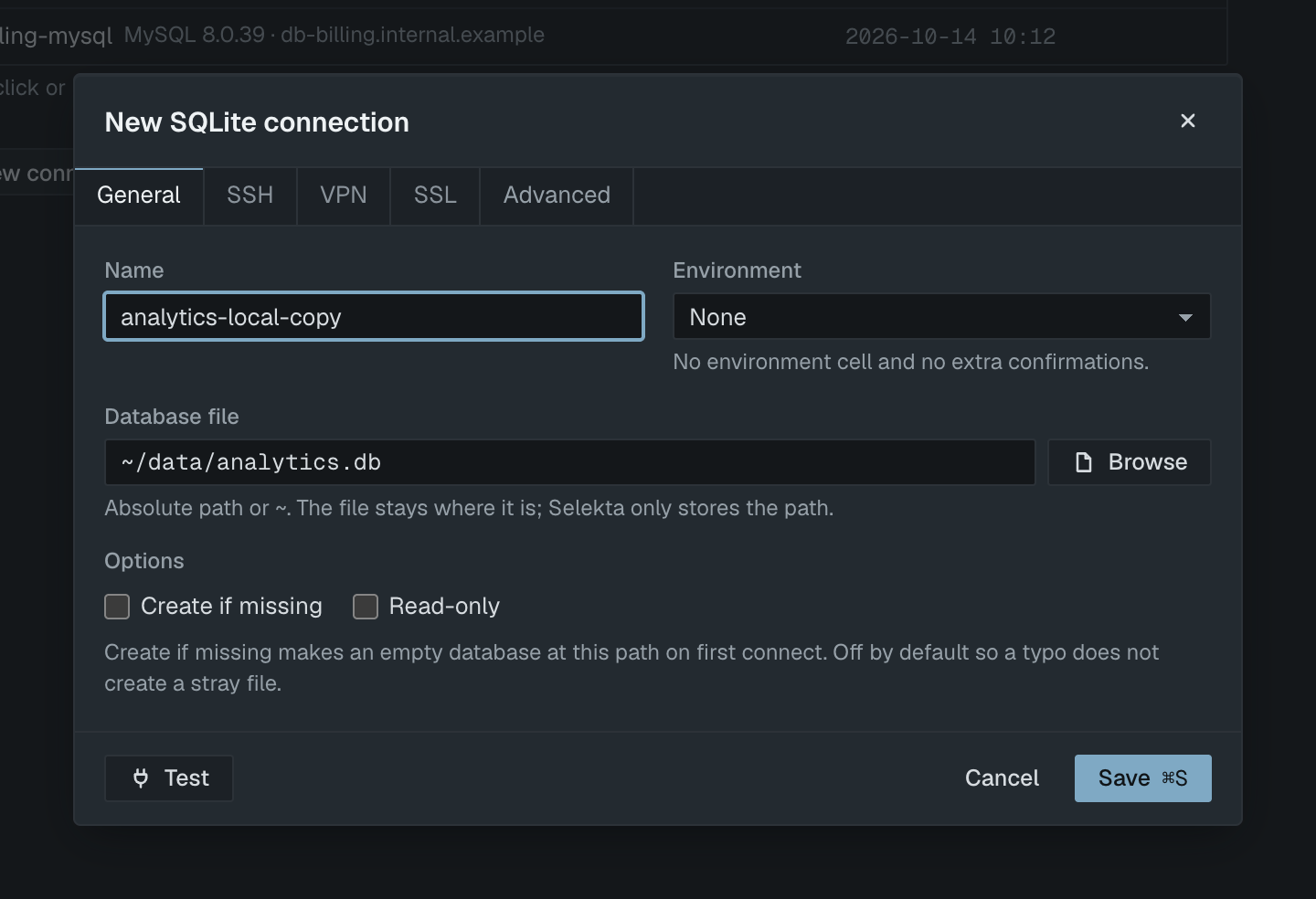
The SSH, VPN and SSL tabs are greyed out for SQLite, because the file is on your own disk.
Create a new SQLite database
To start an empty database, press ⌘N, choose SQLite, type the path of the file you want into Database file (for example ~/data/inventory.db) and tick Create if missing. The file is created on first connect. The option is off by default "so a typo does not create a stray file". Then create tables in a SQL tab:
CREATE TABLE items (
  id    INTEGER PRIMARY KEY,
  name  TEXT NOT NULL,
  qty   INTEGER NOT NULL DEFAULT 0,
  added TEXT DEFAULT (datetime('now'))
);
Create if missing has no effect when Read-only is also ticked.
Browse tables and run SQL
The navigator shows the database as main, with tables and views folders and a count of each. Tables with up to 10,000 rows show their exact row count next to the name.
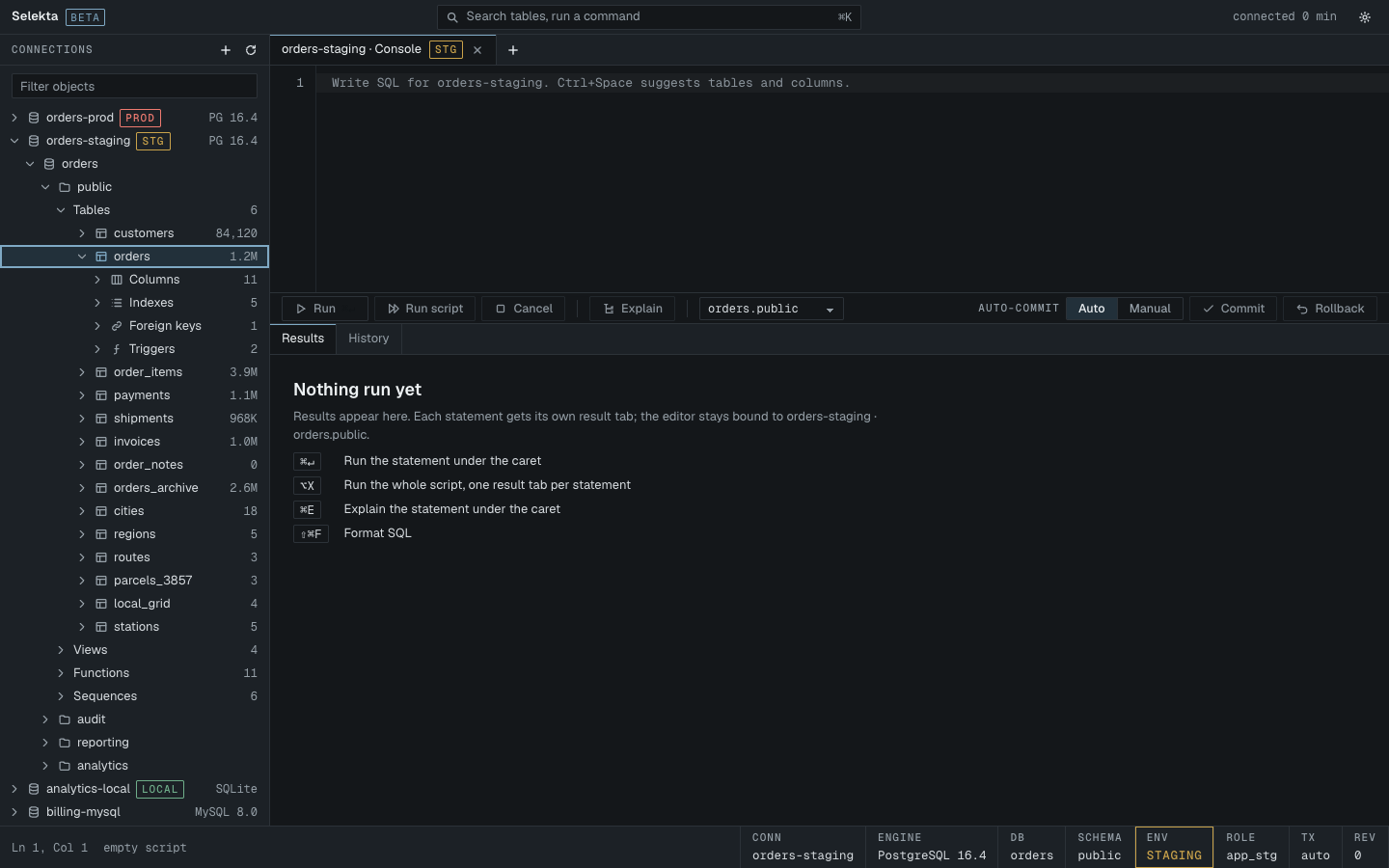
- Double-click a table, or press ⌘O and type its name, to open it in a data tab. Type a condition in Where (for example
qty < 5) and press ⌘↵ to filter. - Right-click a table and choose Open structure to see columns, indexes, foreign keys and triggers, or Generate SQL › SELECT to get a query you can edit.
- Press ⌘] for a new SQL script on this connection. ⌘↵ runs the statement under the cursor; ⌥X runs the whole script.
A few queries that help with an unfamiliar file:
-- every table and view, with the statement that created it
SELECT type, name, sql FROM sqlite_master WHERE name NOT LIKE 'sqlite_%' ORDER BY type, name;

-- columns of one table
PRAGMA table_info(items);

-- check the file for corruption
PRAGMA integrity_check;
If the file is not opened read-only, you can edit cells in the data tab. Each change becomes a revision; Apply (⌘S) shows the exact SQL in Review SQL before anything is written. Tables without a primary key are read-only in the grid.
Export the data
Open a table, then click Export in the bottom bar or press ⇧⌘E. Choose CSV, JSON, SQL INSERT or XLSX, set the options, and pick where to save the file. If a Where filter is applied, the export contains only the matching rows. The export guide covers the options in detail.
Without an app, the sqlite3 command that ships with macOS can do a quick CSV export:
sqlite3 -header -csv ~/data/inventory.db "SELECT * FROM items;" > items.csvTo keep a full copy of the database, right-click the connection and choose Backup….
If it fails
File not found at ~/data/analytics.db. Nothing exists at that path. Check the spelling, or use Browse to pick the file. If you meant to create a new database, tick Create if missing.
Use a file path, not a URL. Paste sqlite:// URLs into Connection URL. You typed sqlite:///... into Database file. Remove the scheme, or paste the URL on the first step of the New connection dialog, where sqlite:// URLs are recognised.
attempt to write a readonly database. SQLite refused a write. Either the connection is set to Read-only, or macOS does not let you write to that file or folder. Check the permissions in Finder (Get Info), or work on a copy in your home folder.
database is locked. Another program holds a write lock on the file. Close it, or copy the file and open the copy.
file is not a database. The file is not SQLite, or it is encrypted (some apps use encrypted SQLite). Selekta can only open standard, unencrypted SQLite 3 files.