
Keyboard shortcuts
Selekta has one keymap that menus, tooltips, the command palette and the shortcut help all read from. Pick the Selekta or Classic preset, or record your own key for any action in Settings › Shortcuts. Press ⌘/ in the app to see the current keys.
Presets
There are two presets. You switch between them with Preset in Settings › Shortcuts.
- Selekta default uses Mac keys: ⌘↵ runs a statement, ⌘E explains it, ⌘R refreshes.
- Classic changes a few actions to Control and function keys for people used to them, for example ⌃↵ to run, ⌃⇧E to explain, ⌃⇧F to format and F5 to refresh. Every other action keeps its Selekta key.
The table below lists both. A Classic key is shown only where it differs.
Switching preset keeps your own bindings, unless the new preset uses one of their keys. Then the preset wins, your binding for that action is cleared, and a note lists the actions that were reset.
Record your own shortcut
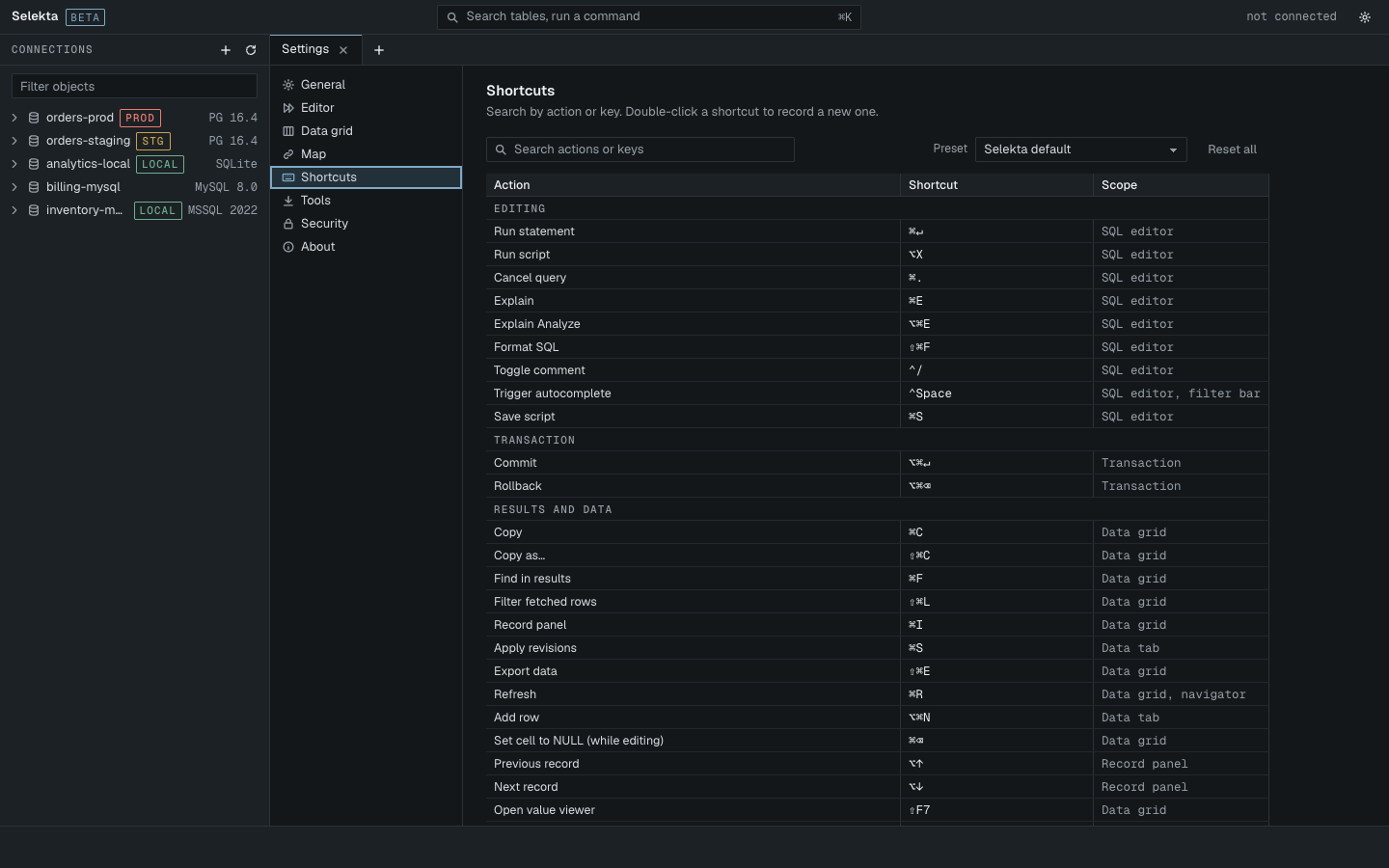
- Open Settings with ⌘, and choose Shortcuts. You can also choose Edit shortcuts in the shortcut help.
- Find the action. Search actions or keys matches action names and keys, so "explain", "cmd e" and "⌘E" all find Explain.
- Double-click its shortcut, or select it and press Return. The cell says "Press keys… esc cancels".
- Press the new key combination. Press Esc to cancel.
A custom key shows custom · reset next to it; click it to go back to the preset key. Reset all clears every custom binding at once. Changes apply immediately.
For Inner tab 1 to 7, press the modifiers with any digit; Selekta records the whole range, for example ⌃1 to ⌃7.
When a key is already taken
A new key is rejected when another action already uses it in the same scope or in the Global scope. Selekta says which action has it, for example "⇧⌘E is already used by Export data in Data grid", and keeps the old binding. Rebind or reset the other action first, then try again.
Actions in different scopes can share a key. ⌘S means Save script in the SQL editor and Apply revisions in a data tab.
All shortcuts
Editing
| Action | Keys | Classic preset | Where |
|---|---|---|---|
| Run statement | ⌘↵ | ⌃↵ | SQL editor |
| Run script | ⌥X | SQL editor | |
| Cancel query | ⌘. | SQL editor | |
| Explain | ⌘E | ⌃⇧E | SQL editor |
| Explain Analyze | ⌥⌘E | ⌃⌥⇧E | SQL editor |
| Format SQL | ⇧⌘F | ⌃⇧F | SQL editor |
| Toggle comment | ⌃/ | SQL editor | |
| Trigger autocomplete | ⌃Space | SQL editor, filter bar | |
| Save script | ⌘S | SQL editor |
Transaction
| Action | Keys | Classic preset | Where |
|---|---|---|---|
| Commit | ⌥⌘↵ | Transaction | |
| Rollback | ⌥⌘⌫ | Transaction |
Results and data
| Action | Keys | Classic preset | Where |
|---|---|---|---|
| Copy | ⌘C | Data grid | |
| Copy as… | ⇧⌘C | Data grid | |
| Find in results | ⌘F | Data grid | |
| Filter fetched rows | ⇧⌘L | Data grid | |
| Record panel | ⌘I | Data grid | |
| Apply revisions | ⌘S | Data tab | |
| Export data | ⇧⌘E | Data grid | |
| Refresh | ⌘R | F5 | Data grid, navigator |
| Add row | ⌥⌘N | Data tab | |
| Set cell to NULL (while editing) | ⌘⌫ | Data grid | |
| Previous record | ⌥↑ | Record panel | |
| Next record | ⌥↓ | Record panel | |
| Open value viewer | ⇧F7 | Data grid | |
| Inner tab 1 to 7 | ⌘1 … ⌘7 | Object editor |
Navigation
| Action | Keys | Classic preset | Where |
|---|---|---|---|
| Command palette | ⌘K or ⇧⌘P | Global | |
| Filter navigator | ⌥⌘F | Global | |
| Toggle navigator | ⌘B | Global | |
| New connection | ⌘N | Global | |
| Test connection | ⌘T | Connection dialog | |
| Disconnect | ⇧⌘D | Navigator | |
| Context menu | ⇧F10 | Global | |
| Open table | ⌘O | Global | |
| Query history | ⇧⌘H | Global | |
| New SQL script | ⌘] | Global | |
| Close tab | ⌘W | Global | |
| Shortcut help | ⌘/ | Global | |
| Settings | ⌘, | Global | |
| Zoom in | ⌘= or ⇧⌘= | Global | |
| Zoom out | ⌘- | Global | |
| Actual size | ⌘0 | Global |