
Schema diagram
The schema diagram draws every table and view of one schema as a box with its columns, and every foreign key as a line between them. Open it from the navigator with Open diagram, then move boxes, focus on one table, or export the sheet as PNG, SVG or Mermaid.
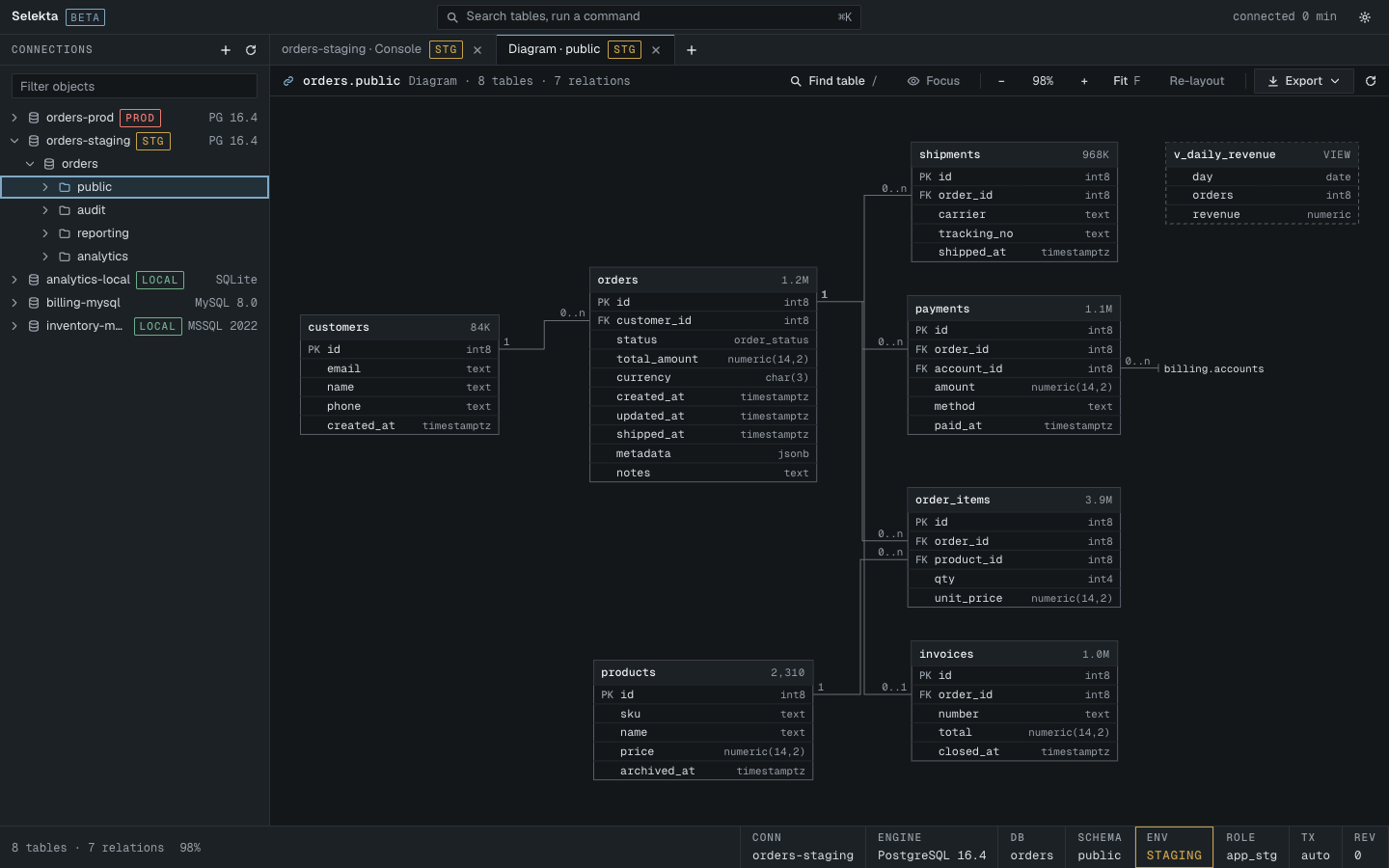
Open a diagram
- In the navigator, right-click a schema (PostgreSQL, SQL Server), a database (MySQL, SQLite) or its Tables folder.
- Choose Open diagram.
The diagram opens in its own tab, titled Diagram · followed by the schema name. You can also open the command palette with ⌘K and run Open schema diagram. It uses the connection and schema of the active tab, or the connection selected in the navigator. If no connection is selected, Selekta asks you to select one first.
The header shows how many tables and relations the schema has. Press ⌘R or the reload button to read the schema again after you change it.
Read the diagram
Each box is one table or view:
- The header shows the name and the row estimate (for example 12K or 1.4M). Views show VIEW instead, and their border is dashed.
- Each row is a column with its data type. Long types are shortened.
- PK marks primary key columns and FK marks foreign key columns.
Each line is a foreign key, drawn from the referencing table to the referenced one. The labels at both ends show the cardinality: a NOT NULL foreign key reads as exactly one at the parent end, a nullable one as zero or one. A foreign key that points to a table in another schema ends in a short stub labelled schema.table.
Hover or select a table to highlight its relations. The joined columns turn accent coloured and the other lines fade.
If the schema has no foreign keys, a note says so and the tables are laid out in a grid by name. If your role cannot see any tables, the diagram says the schema has no tables or views your role can see.
Move around
- Drag the background to pan. The scroll wheel zooms.
- Use the zoom buttons in the header, or ⌘=, ⌘- and ⌘0 while the canvas has focus. Zoom ranges from 10% to 300%.
- Fit shows the whole diagram.
- Find table opens a search box. Type part of a name, pick a table, and the diagram centres on it.
- Use the arrow keys to move the selection between neighbouring boxes and Return to open the selected table's data.
- Double-click a box to open the table's data in a new tab.
Move boxes
Drag a box to place it somewhere else. Selekta remembers the positions on this Mac, per connection and schema, so the diagram looks the same next time. Re-layout forgets every moved box and lays the diagram out again.
Focus on one table
Large schemas are easier to read one table at a time.
- Select a table.
- Click Focus.
The diagram now shows only that table and the tables it links to or that link to it. The banner names the table and the number of neighbours. Boxes you move in focus are not saved. Click Show all to return to the full diagram.
Export the diagram
Click Export in the header and choose:
| Option | What you get |
|---|---|
| Save as PNG… | A PNG image at twice the screen size, with the canvas background. |
| Save as SVG… | An SVG file with styles inlined, so it looks the same outside Selekta. |
| Copy as Mermaid | A Mermaid erDiagram on the clipboard, with columns, PK and FK markers and the relations. |
The file is named after the schema, for example public-diagram.png, and is saved in your Downloads folder unless you pick another one. The export uses what is on screen: in focus, only the focused tables and their relations are exported.
The Mermaid text looks like this:
erDiagram
  customers {
    int4 id PK
    text email
  }
  orders {
    int4 id PK
    int4 customer_id FK
  }
  customers ||--o{ orders : "orders_customer_id_fkey"
|| means the foreign key is NOT NULL, |o that it may be NULL. o{ means many rows can point to one parent, o| that the foreign key is unique (one to one).