
Explain plans
Press ⌘E in the SQL editor to see the plan for the statement under the caret without running it, or ⌥⌘E to run it and see the actual times. The plan opens in the Explain result tab as a tree, with the slowest or costliest step marked.
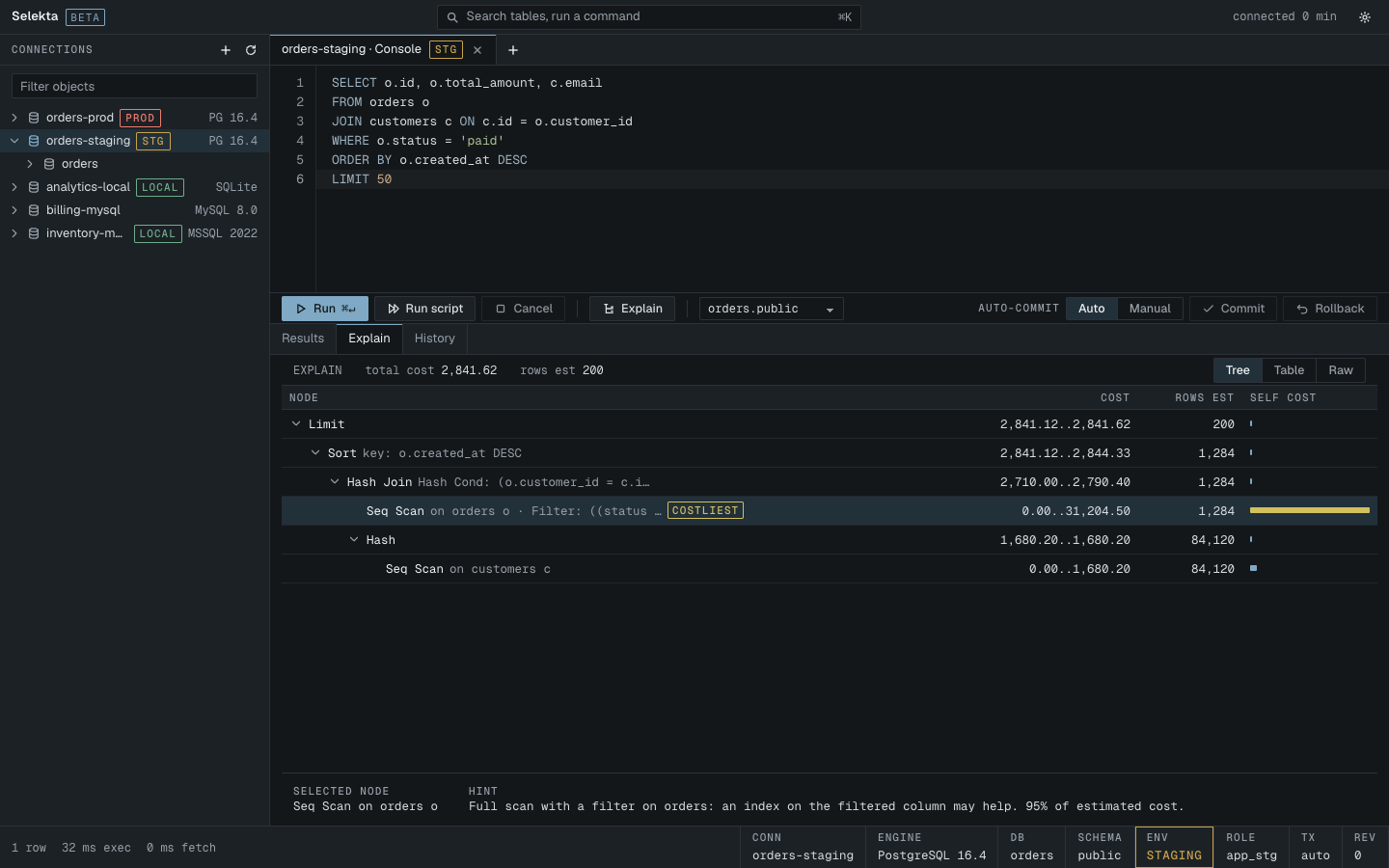
Explain or Explain Analyze
| Action | Keys | What it does |
|---|---|---|
| Explain | ⌘E | Asks the planner for its estimated plan. The statement does not run. |
| Explain Analyze | ⌥⌘E | Runs the statement and reports what really happened: actual rows, loops and time per step. |
Both work on the statement under the caret, or on the selection if you selected text. The Explain button in the editor toolbar does the same as ⌘E. While a plan runs, the header shows a clock, so you can tell that Explain Analyze is really executing the statement.
What each database reports
Selekta sends the statement with the database's own explain syntax and reads the result.
| Database | Explain | Explain Analyze |
|---|---|---|
| PostgreSQL | EXPLAIN (FORMAT JSON) |
EXPLAIN (ANALYZE, BUFFERS, FORMAT JSON) |
| MySQL and MariaDB | EXPLAIN FORMAT=JSON |
EXPLAIN ANALYZE |
| SQL Server | SET SHOWPLAN_XML ON |
SET STATISTICS XML ON |
| SQLite | EXPLAIN QUERY PLAN |
EXPLAIN QUERY PLAN |
PostgreSQL with Explain Analyze also shows planning time, execution time and shared buffer hits and reads. SQL Server with Statistics XML shows elapsed and CPU time. On SQL Server, Explain Analyze runs the statement and shows only the plan, not the statement's own rows.
SQLite
SQLite only reports which tables are scanned or searched and which indexes are used. It has no costs, row estimates or timings, so there is no tree and no bars. Selekta shows the plan as text, the way the sqlite3 shell prints it, with a short reading guide underneath: SEARCH with an index is good, SCAN means every row of that table is read. Use Measure with Run timing to run the statement normally and see how long it takes.
Read the plan tree
The summary bar at the top names the explain mode and shows the totals the database reported. On the right, choose Tree, Table or Raw.
In Tree view each row is one step of the plan, indented under its parent:
- Node is the operation, such as
Seq Scan,Index Scan,Hash JoinorFull table scan, followed by the table, index and filter. - Cost and Rows est are the planner's estimates.
- With Explain Analyze you also get Rows actual, Total (time including child steps) and Self (time in this step alone).
- The bar shows Self time with Explain Analyze, or Self cost without it.
The step with the largest share is tagged slowest (with timings) or costliest (estimates only), and it is selected when the plan opens. A row count shown in warning colour means the estimate was off by more than 10 times, which usually points to stale statistics.
Use the arrow keys to move through the tree, and to collapse or expand a step. Click the arrow next to a step to do the same with the mouse.
Selected node
Below the tree, the selected step shows its details: loops, rows removed by a filter, buffers, sort space, parallel workers, logical reads, or estimated I/O and CPU, depending on the database. The slowest step also gets a Hint: its share of the execution time or cost, and when it is a full scan with a filter, a note that an index on the filtered column may help.
Table and Raw views
Table lists every step as a row with the columns parent, node, detail, cost, rows_est, rows_actual, loops, total_ms and self_ms. Click a numeric column header to sort by it. ⌘C copies the selected row, or all rows when none is selected, as tab-separated text.
Raw shows the plan exactly as the server returned it: JSON for PostgreSQL and MySQL, showplan XML for SQL Server. Copy plan puts it on the clipboard, for example to share it with a colleague.