
Getting started with Selekta
On first launch Selekta opens a Welcome screen where you add a connection. Test it, save it, and Selekta connects and opens a SQL console tab where you run your first query, with the connection and environment shown in the title block at the bottom of the window.
The Welcome screen
When nothing is saved yet, the Welcome screen says Connect your first database and offers three ways in:
- New connection (⌘N) opens the connection dialog.
- Start with an engine lists PostgreSQL, MySQL / MariaDB, SQLite and SQL Server. Click one to open the dialog with that engine already chosen.
- Paste connection URL takes a URL such as
postgres://user@host:5432/dband fills the dialog from it.postgres://,postgresql://,mysql://,mariadb://andsqlite://are recognised. A password in the URL goes to the macOS Keychain.
Open SQLite file opens a file picker for a local SQLite database instead.
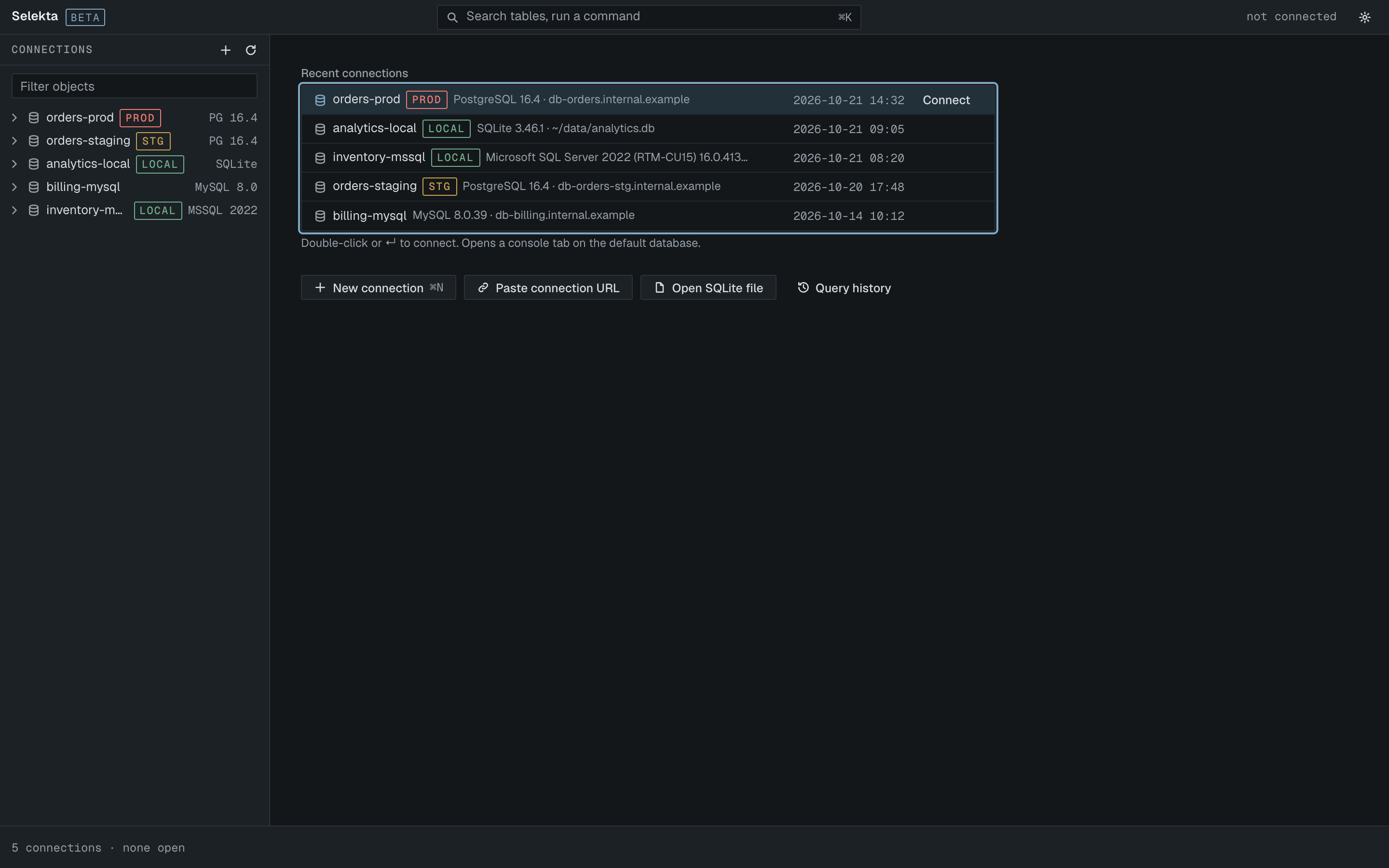
Once you have connections, the Welcome screen lists them under Recent connections, most recently used first, with the environment tag, server version and host. Double-click one or select it and press Return to connect.
Add your first connection
- Click New connection or press ⌘N, then pick an engine.
- On the General tab, fill in Name, Host, Port, Database, User and Password. You can switch Enter as to URL to paste a connection URL instead of filling the fields. For SQLite you choose a database file instead of a host.
- Choose an Environment: Production, Staging, Local or None. Production shows a red ENV cell and asks you to type the connection name before destructive statements run.
- Leave Save password on to keep the password in the macOS Keychain. Turn on Read-only if you only want to look.
- Click Test (⌘T). When it works, the dialog shows "Connected to" the server version and the time it took.
- Click Save (⌘S).
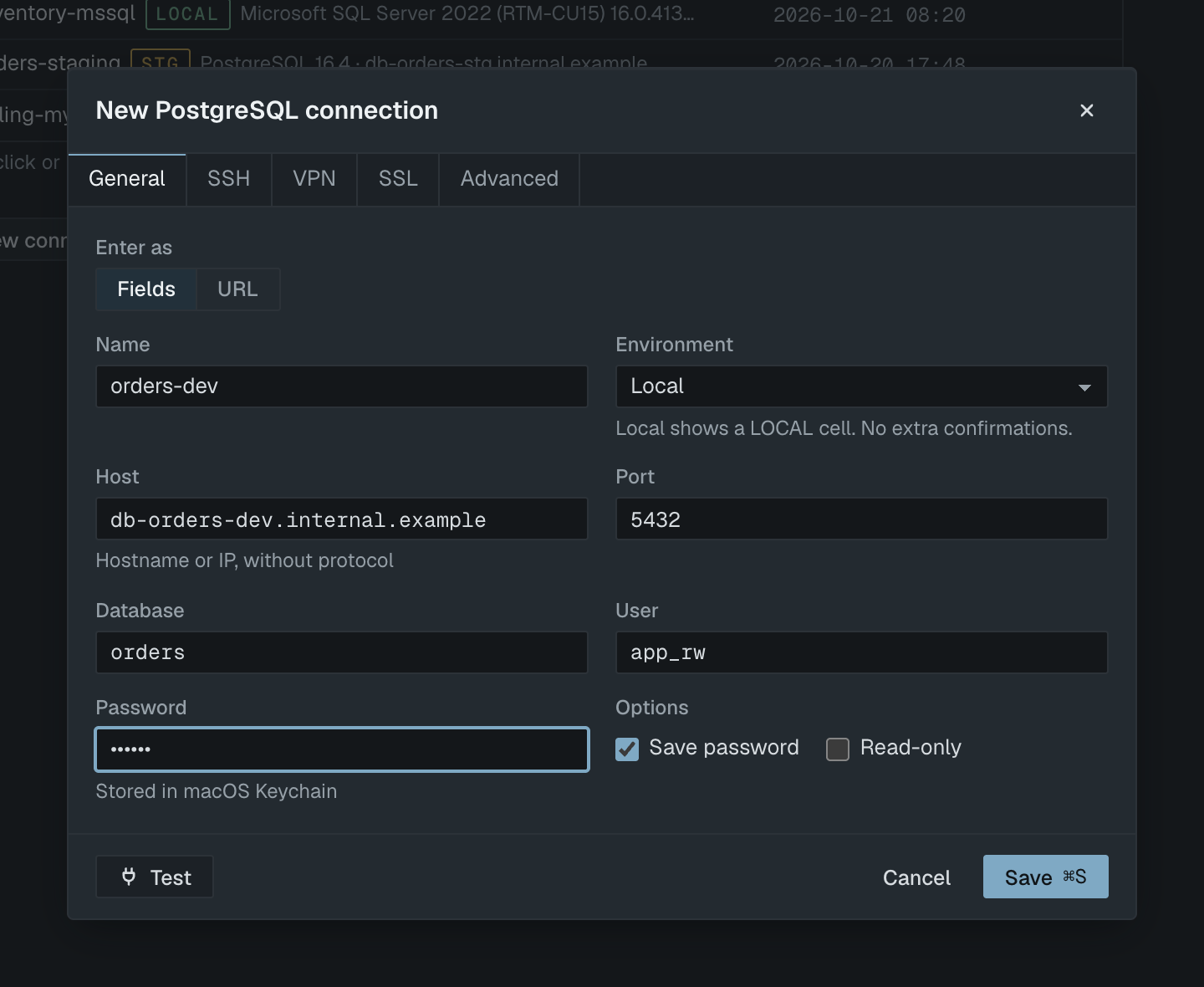
After a passing test, saving a new connection also connects it and opens a console tab on the default database. The other tabs, SSH, VPN, SSL and Advanced, are covered in Connections and SSH and TLS.
Find your way in the navigator
The navigator on the left shows every saved connection as a tree: databases, schemas, tables, views, functions and the rest, loaded as you expand them.
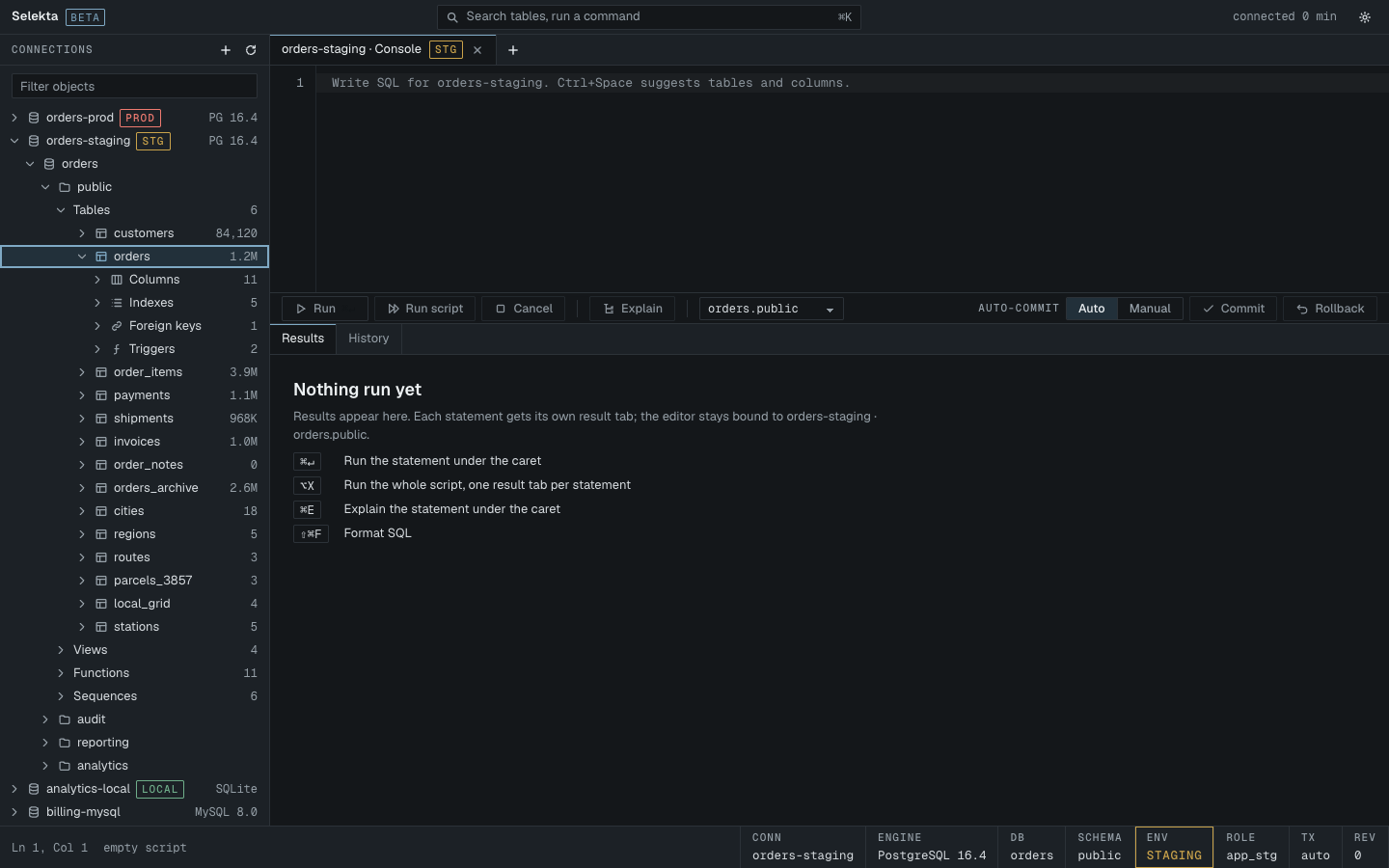
- Type in Filter objects to narrow the tree. ⌥⌘F or ⌘O jumps to the filter from anywhere.
- Select a table or view and press Return to open its data. Press ⌘↵ to open its structure instead.
- Right-click any item, or press ⇧F10, for its context menu: Connect, Disconnect, Edit…, Generate SQL, Backup…, Import CSV… and more, depending on the item.
- ⌘B hides or shows the navigator. Drag its edge to resize it.
When a connection is open but no tab is, Selekta shows quick actions for it: New SQL script (⌘]), Open table (⌘O), Query history (⇧⌘H) and recent scripts on that connection.
Run your first query
Type a statement in the console tab, then:
- Press ⌘↵ or click Run to run the statement under the cursor.
- Press ⌥X or click Run script to run everything in the editor.
- Press ⌘. to cancel a query that takes too long.
SELECT table_schema, table_name
FROM information_schema.tables
ORDER BY 1, 2;
The result opens in a grid below the editor.
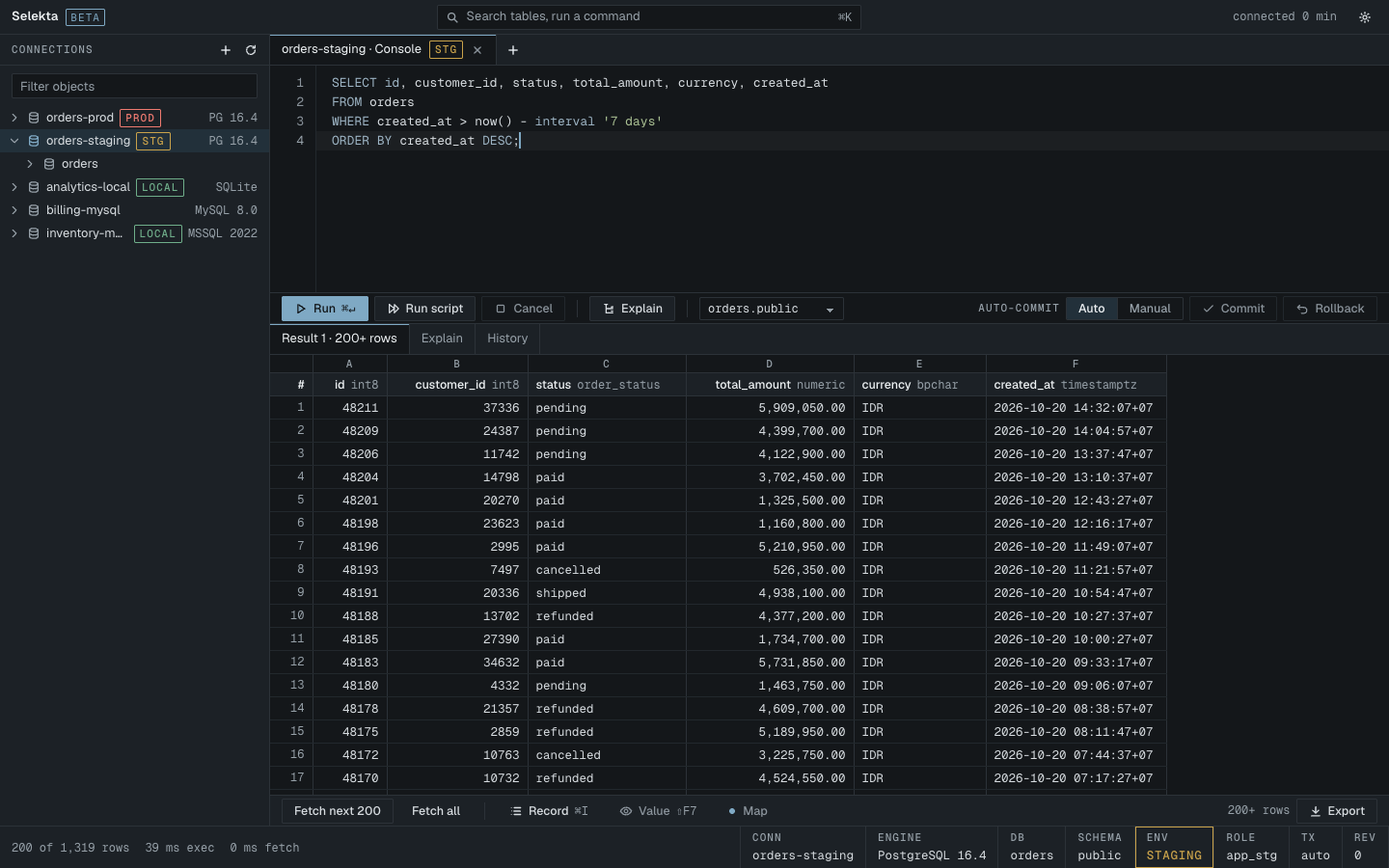
⌘K opens the command palette, where you can search for tables and run any command. ⌘/ shows the shortcut help. More in SQL editor and Results and editing.
Read the title block and status bar
The status bar at the bottom of the window ends in a title block for the connection of the current tab. It answers "where am I, and what will this run against?" before you press Run.
| Cell | Shows |
|---|---|
| Conn | Connection name, plus connecting, reconnecting or lost |
| Engine | Server version, or the engine name before connecting |
| DB | Current database |
| Schema | Current schema |
| Env | PRODUCTION (filled red), STAGING or LOCAL. No cell for None |
| Mode | READ-ONLY, only for read-only connections |
| Role | The user you are connected as |
| TX | Transaction state: auto, an open transaction, none or rolled back |
| Rev | Pending data edits, shown as Δ and a count |
In narrow windows Engine, DB and Role are dropped; hover the Conn cell to see them. Double-click the Conn cell to edit the connection. Tabs carry the same environment tag, so a Production tab looks different from a Local one.
The left side of the status bar shows what is happening right now, such as the connection state, running jobs and an Update item when a new version is waiting. The top bar shows how long the current connection has been open.